Sending messages and message tools
This guide walks through sending messages and a channel’s conversation tools. It applies to anyone with posting rights in a channel.
Send a message
Section titled “Send a message”- Open Communication and select a channel from the list.
- Type your message in the field at the bottom.
- Send it with the Send button.
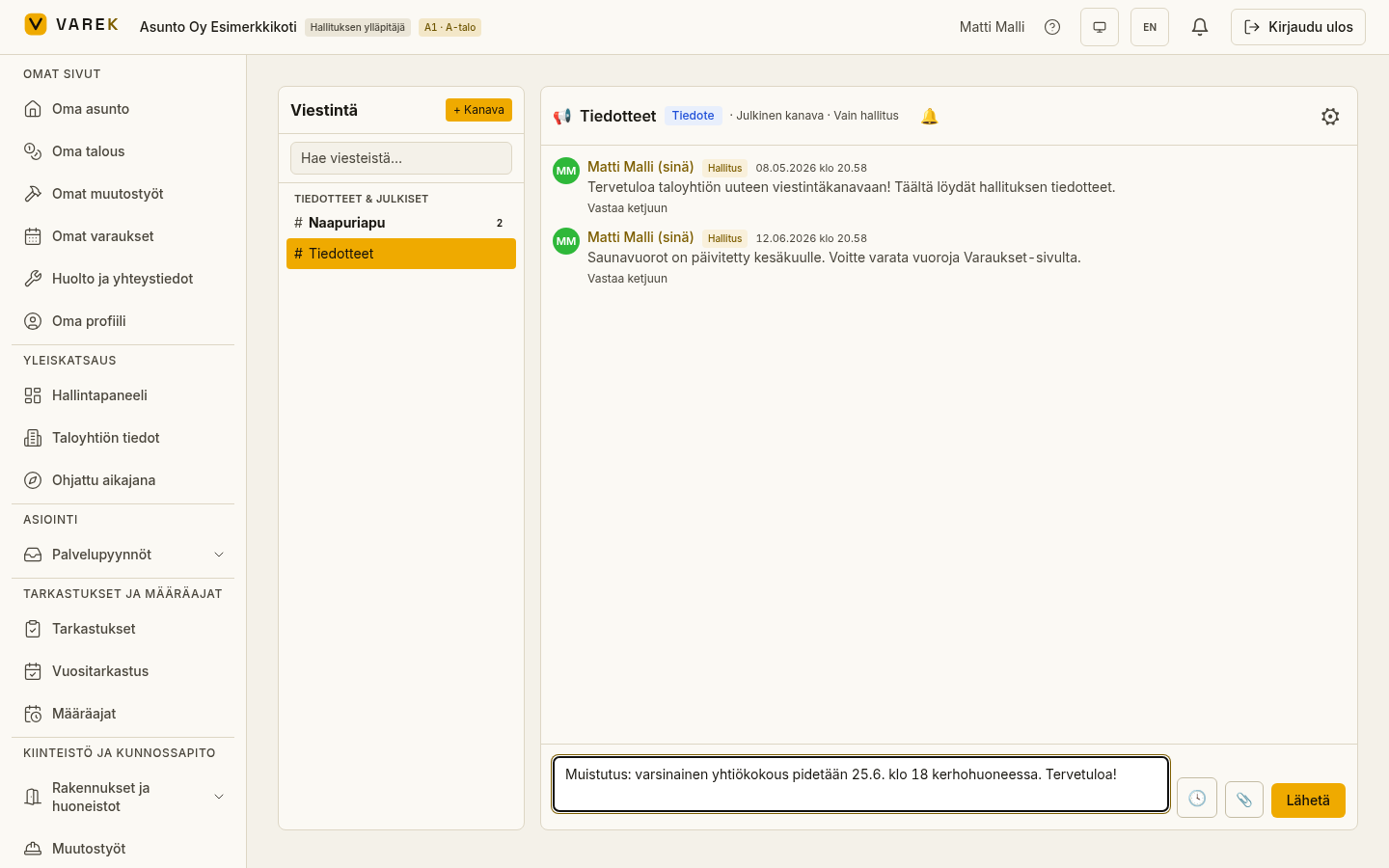
New messages appear immediately, and unread messages are flagged in the channel list. A “New messages” divider shows where to resume reading.
A channel opens at its newest messages. In a busy channel you can browse older history with the “Show older messages” button at the top of the conversation — the view stays in place while the older messages load above.
Mention a person (@-mention)
Section titled “Mention a person (@-mention)”Type @ followed by a person’s name to get a suggestion list. The mentioned
person gets a notification about the message. If @kaikki alerts are allowed
in the channel, you can mention all channel members at once — see
Announcements and notifications.
Reply in a thread
Section titled “Reply in a thread”You can continue a single message’s conversation in a separate thread, keeping the main channel tidy.
- Select Reply in thread under a message.
- Type your reply in the thread panel that opens.
- Send the reply.
A counter showing the number of replies appears under the message.
React to a message (emoji)
Section titled “React to a message (emoji)”You can respond to a message lightly with an emoji reaction — for example as an acknowledgement or a thank-you — without writing a separate message.
- Hover over the message and select the smiley button in the toolbar.
- Pick one of the emojis: 👍 ❤️ 😂 😮 😢 🎉 ✅.
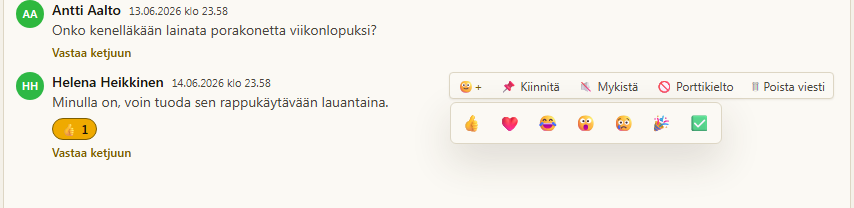
Reactions appear under the message with counts, and your own reaction is highlighted. You can also click a reaction already shown under a message to join it — clicking it again removes your reaction.
Attach a file
Section titled “Attach a file”You can attach the housing company’s documents to a message.
- Select the attachment button (📎) next to the message field.
- Choose the documents to attach and close the dialog.
- Send the message — attachments appear in the message as clickable links.
Search messages
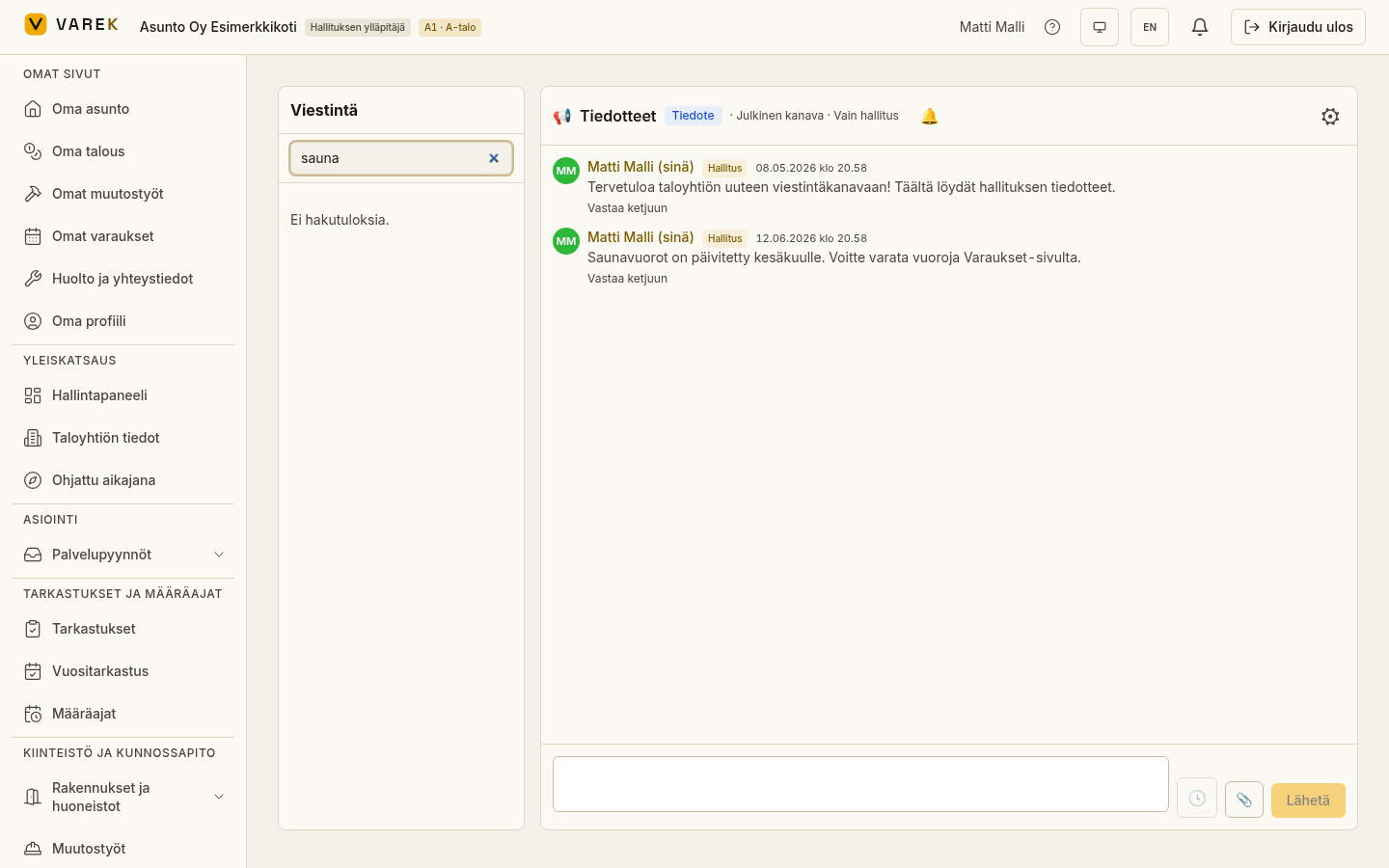
Section titled “Search messages”Type at least two characters into the search field above the channel list. Results appear in place of the list. Click a result and VAREK opens the right channel and jumps to the found message.
Pin an important message
Section titled “Pin an important message”You can pin an important message to the top of the channel.
- Hover over the message to reveal the toolbar on the right.
- Select Pin (📌).
Pinned messages show in the pinned strip at the top of the channel. If you don’t have pinning rights, you can propose a pin to an admin.
Schedule a message
Section titled “Schedule a message”You can schedule a message to be sent later.
- Write the message as usual.
- Select the clock button (🕓) next to the message field.
- Choose the send time and confirm.
Scheduling is available to anyone with posting rights in the channel. Scheduled messages appear in the channel settings under Scheduled messages, where they can also be cancelled — but the channel settings (⚙) can only be opened by a channel manager (an admin or the channel’s creator). If you don’t have those rights, ask a channel manager to cancel your scheduled message if needed.