Members and roles
On the Members page you manage who belongs to the association and with what permissions. Each member has a role (e.g. shareholder or accountant) and an optional board position (e.g. chair).
Open member management
Section titled “Open member management”- Open Members from the left-hand menu.
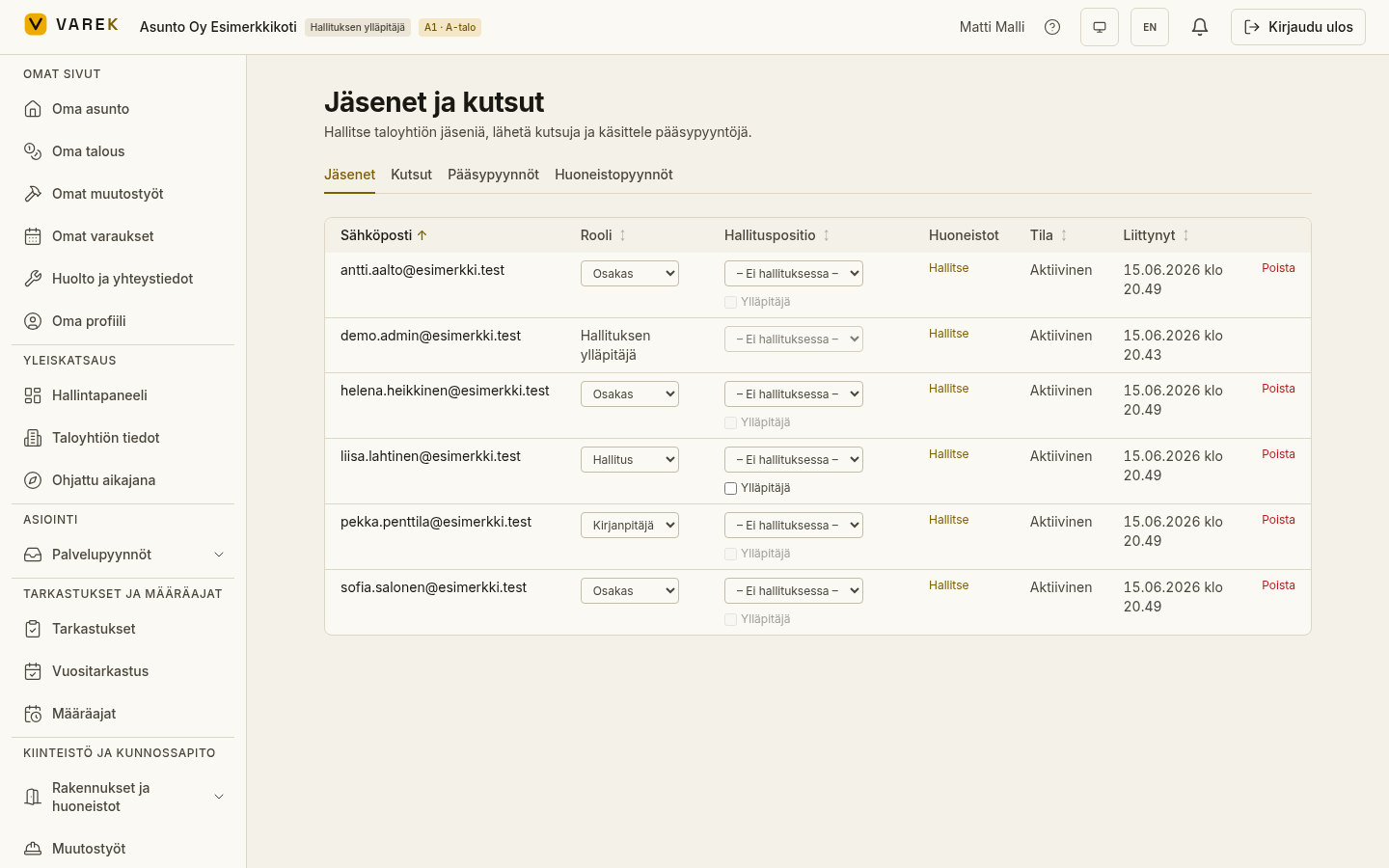
- You will see tabs: Members, Invitations, Access requests and Apartment requests. The Members tab shows the member table with emails, roles and statuses.
Grant or change a role
Section titled “Grant or change a role”Change a member’s role from the menu in the Role column. The options are:
- Shareholder (“Osakas”) — sees their own apartment and the association’s shared information, and can file defect reports and make bookings.
- Accountant (“Kirjanpitäjä”) — has access to the finance module and reports.
- Super admin (“Pääylläpitäjä”) — the broadest permissions.
Promote a member to the board
Section titled “Promote a member to the board”Board membership is managed from the Board position column:
- Choose a position for the member (chair, vice chair, secretary, treasurer or member).
- The chair automatically gets admin rights; others become board members.
- The option ”– Ei hallituksessa –” (not on the board) removes the member from the board and reverts the role to shareholder.
For a board member you can separately grant or remove admin rights with the Admin (“Ylläpitäjä”) checkbox. For the chair, admin rights are always in effect.
Manage a member’s apartments
Section titled “Manage a member’s apartments”The Manage button in the Apartments column opens the member’s apartments. There you can link the member to an apartment as an owner or resident, set the ownership share, transfer ownership to another member, and view ended ownerships. Ownership is covered in more detail in its own guide.
Consultant permissions
Section titled “Consultant permissions”A consultant is not managed from the role or position menu, but from the Manage permissions button. There you grant the consultant limited, individually selected permissions.
Edit a member’s contact details
Section titled “Edit a member’s contact details”A super admin, board admin, or platform operator can edit a member’s contact details directly without the member having to make changes themselves:
- Find the member in the table.
- Click Edit details on the right-hand side of the row.
- Update the first name, last name, phone number, and postal address.
- Save the changes with the Save button.
Remove a member
Section titled “Remove a member”Remove a member with the Delete button. To confirm, the action asks you to type the word POISTA before the member is removed. You cannot remove yourself.