Managing facilities
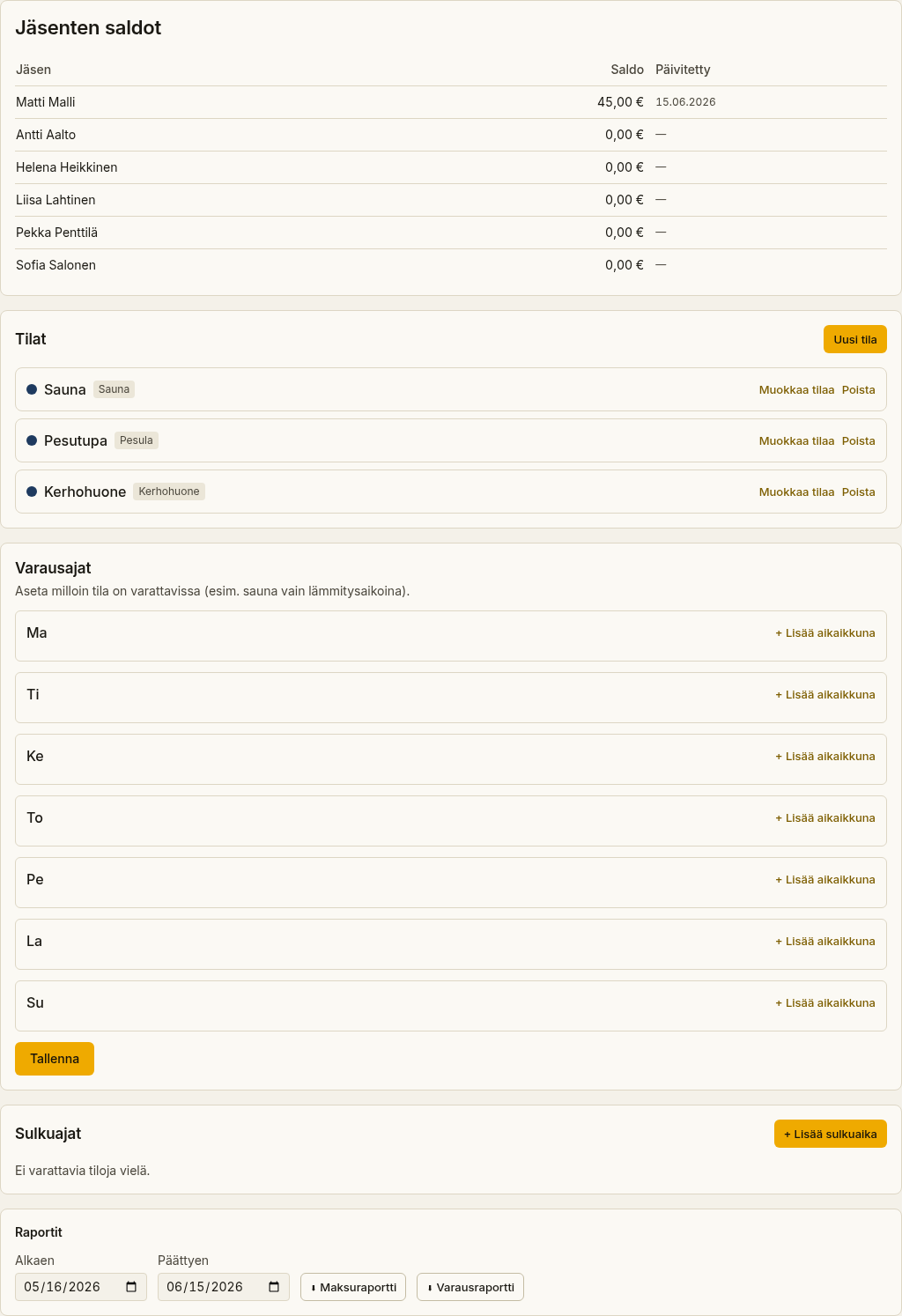
The board decides which facilities can be booked in the housing company, when, and under what rules. All management happens on the Bookings page in Muokkaa kalenteria (Edit calendar) mode.
- Open Bookings.
- Select Muokkaa kalenteria (Edit calendar) in the top right. The management panels open on the page.
Adding and editing facilities
Section titled “Adding and editing facilities”In the Tilat (Facilities) panel you manage the bookable facilities.
- Select Uusi tila (New facility) — or Muokkaa tilaa (Edit facility) on an existing one.
- Fill in the details:
- Nimi (Name) and Tyyppi (Kind: sauna, laundry, clubroom, gym, parking, equipment or other).
- Kuvaus ja säännöt (Description and rules) — free text shown to residents.
- Väri (Color) — the facility’s color in the calendar.
- Hinta € / jakso (Price € / period) and Laskutusjakso (min) (Billing increment) — leave the price at 0 for a free facility.
- Vähimmäisaika and Enimmäisaika (min) (Minimum / maximum duration), Varattavissa etukäteen (pv) (Bookable days in advance), Peruutusaika (min ennen) (Cancellation deadline) and Puskuri varausten välissä (min) (Buffer between bookings).
- Maks. aktiivisia varauksia / käyttäjä (Max active bookings per user) and Maks. varauksia / viikko / käyttäjä (Max bookings per week per user) — leave blank for no limit.
- Salli vierasvaraus (Allow guest booking) — allows a booking without signing in.
- Electricity-estimate fields for a facility with a heater (e.g. a sauna):
- Kiukaan / lämmittimen teho (kW) (Heater power) — leave blank if you don’t want an estimate for this facility.
- Esilämmitys (min) (Prewarming), Käyttösuhde käytön aikana (%) (Duty
cycle during use) and Siirto + sähkövero + marginaali (€/kWh) (Transfer
- electricity tax + margin).
- Select Tallenna (Save).
Delete a facility with Poista (Delete).
Booking hours
Section titled “Booking hours”In the Varausajat (Booking hours) panel you set when a facility can be booked — for example a sauna only during heating hours.
- Add + Lisää aikaikkuna (Add time window) to a weekday.
- Set the window’s start and end time. You can enter 00:00 as the end time to mean end-of-day (midnight) — the facility will then be bookable for the full remaining day from the chosen start time.
- Add several windows to the same day if needed. Remove a window with Poista (Delete).
- Select Tallenna (Save).
In the calendar, bookable hours appear green and the rest grey.
Blackout periods
Section titled “Blackout periods”In the Sulkuajat (Blackouts) panel you block bookings for a period — for example during maintenance or a work day.
- Select + Lisää sulkuaika (Add blackout).
- Set the start and end time and, optionally, a Syy (Reason).
- Select Tallenna (Save).
No bookings can be made during a blackout, and an attempt shows the resident a notice that the facility is closed.
Member balances
Section titled “Member balances”In the Jäsenten saldot (Member balances) panel you manage balances for paid facilities.
- Choose a member from the list.
- Select Lisää saldoa (Add funds) or Vähennä saldoa (Remove funds), enter an amount and, if needed, a reason. Removing funds requires a reason.
- Confirm with the button for your chosen direction — Lisää saldoa (Add funds) or Vähennä saldoa (Remove funds). The member’s balance updates and the transaction is recorded in their ledger.
You can’t remove more than the member’s current balance.
Booking reports
Section titled “Booking reports”In the Raportit (Reports) panel you download CSV reports of bookings for accounting.
- Set a date range (Alkaen / From and Päättyen / To).
- Download the Maksuraportti (Payment report — paid bookings only) or the Varausraportti (Reservation report — all bookings).