Managing documents
This page explains how to add documents to the association’s archive and keep them organized. Board members can add documents, and an admin can additionally rename, move, and delete files.
Upload a document
Section titled “Upload a document”- Open Documents in the left-hand menu.
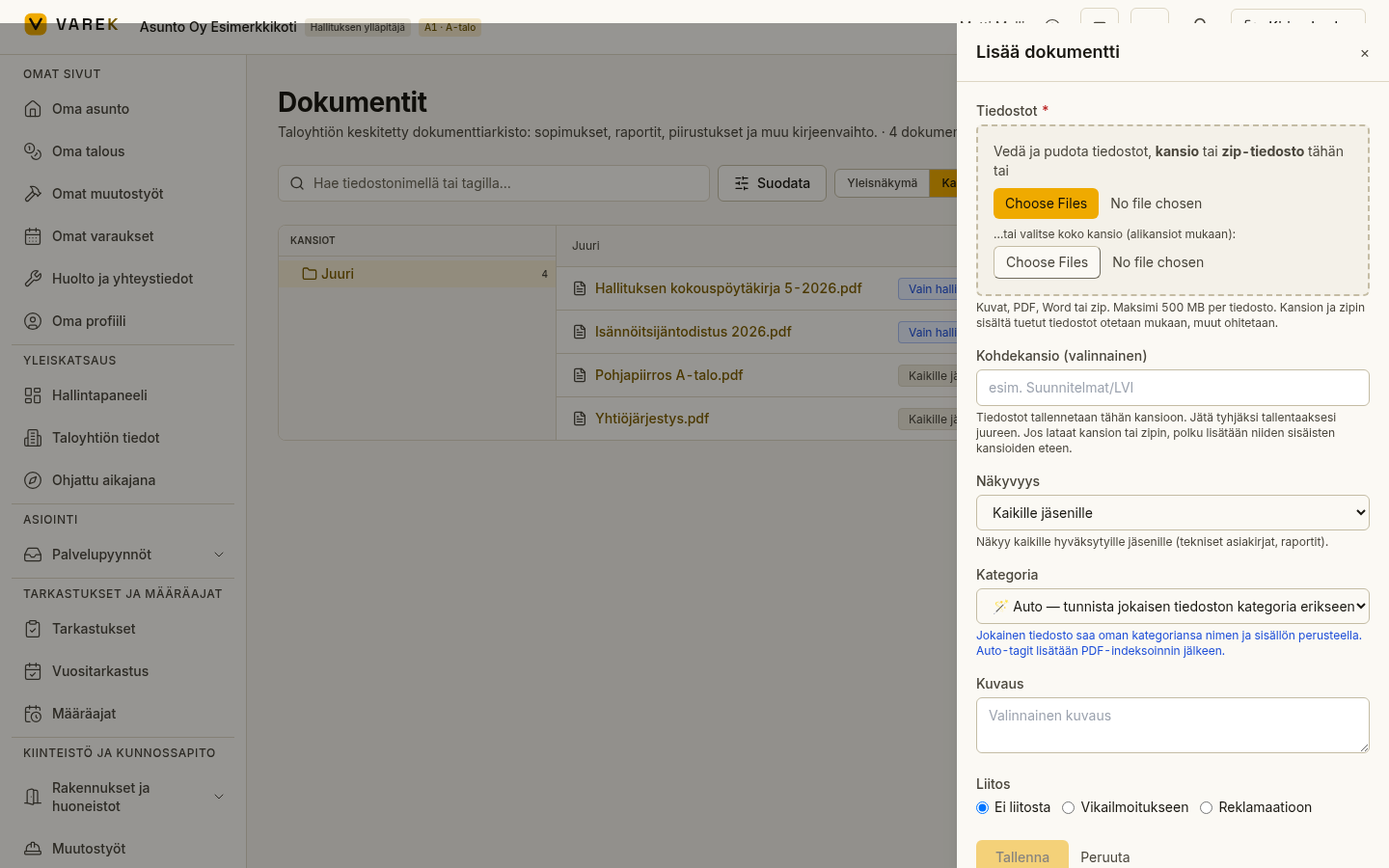
- Select Lisää dokumentti (Add document) at the top right. An upload panel opens on the right.
- Choose files with the file selector or drag them onto the drop zone. You can pick individual files, a whole folder, or drop a zip package, which VAREK unpacks for you.
- Check the suggested visibility and change it if needed (see Document visibility).
- Choose a category. The default is Auto — detect each file’s category individually, where VAREK detects each file’s category from its name and content, but you can also set it manually.
- Optionally add a description and link the document to a defect report or a claim.
- Select Tallenna (Save).
Supported file types are images, PDF, Word, and zip files. The upload panel shows the maximum allowed file size.
Organize documents into folders
Section titled “Organize documents into folders”Folders are derived from the file names’ paths — there is no separate folder table. A folder comes into being when the first file is uploaded into its path.
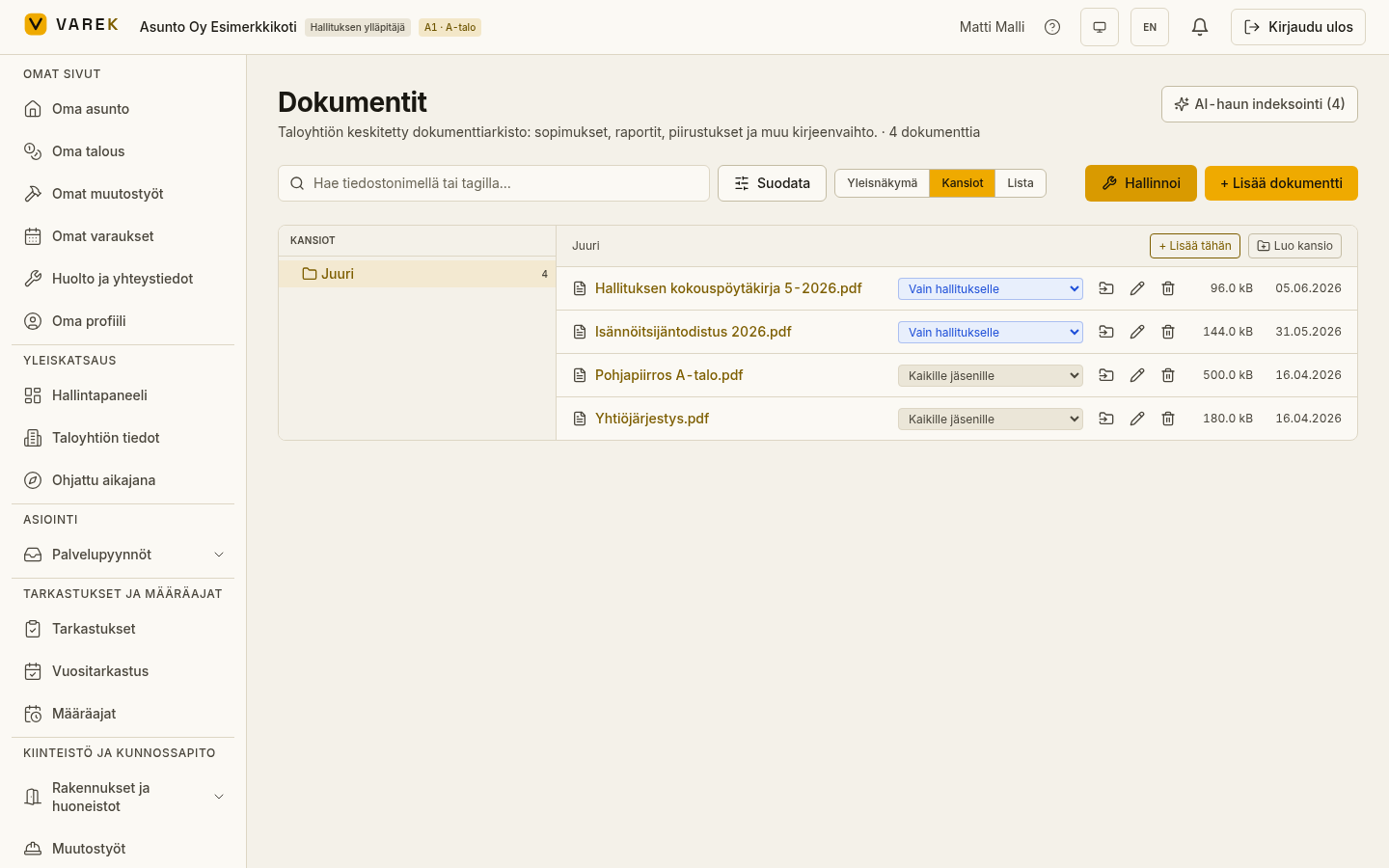
- Open the Kansiot (Folders) view from the toolbar.
- Browse folders by clicking them. Open a file by clicking its name.
- An admin can create a new folder with Luo kansio (Create folder) and add files directly with the + Lisää tähän (Add here) button.
Rename and move files
Section titled “Rename and move files”Renaming, moving, and deleting individual files, and renaming whole folders, is done in the admin’s Hallinnoi (Manage) mode.
- As an admin, select Hallinnoi (Manage) on the toolbar. The mode reveals the editing tools.
- In the Lista (List) view, each row has Nimeä uudelleen (Rename) and Poista (Delete) actions. In the folder view you can additionally move a file into another folder.
- Renaming a whole folder moves all of its files to a new path at once.
Renaming a document only changes the displayed name — the file itself and its links to defects and claims are not touched.
Analyze drawing (AI)
Section titled “Analyze drawing (AI)”For PDF floor plans and structural drawings, VAREK can read the key details with AI. This helps when preparing the annual inspection and warranty claims, for example.
- Open the List view and find a PDF drawing.
- In the row actions, choose Analyze drawing (AI). (The action is shown to administrators only, and only for PDF files.)
- After a moment an AI analysis card appears next to the document, showing the detected drawing type, apartments (areas and room layouts), structure types, acoustic and fire ratings, floors, and the drawing scale and number.
- You can re-run the analysis with Re-analyze (AI) if the details change.
Result
Section titled “Result”Your documents are safely stored in the association’s archive, organized into folders and categories, and visible to the right users based on their visibility level. You can search them by name or tag and share them with shareholders or the board. For PDF drawings you also get AI-detected details.
See also
Section titled “See also”- Documents — overview
- Document visibility — choose the right visibility level.
- Document chat (Kysy tab) — ask the AI about your documents.