Document chat
Document chat is an AI assistant that answers your questions based on the association’s uploaded documents. Answers include source references, so you can see which document the information came from. The chat is the Kysy (Ask) tab on the Documents page (in the left-hand menu’s Communication & documents section). Old direct links and bookmarks to the chat still work.
Ask a question
Section titled “Ask a question”- Open the Kysy (Ask) tab on the Documents page.
- Type your question into the field at the bottom, for example:
- “What structure types are in building B?”
- “When does the warranty period end?”
- “Where are the firestop maps?”
- Send the question with the Lähetä (Send) button or with Ctrl/⌘ + Enter.
- The answer builds in real time, and the sources used are listed after it. Open a source by clicking it. Besides documents, the sources can also include defect reports, structure types, safety documents and deadlines — their links take you straight to that section of the app.
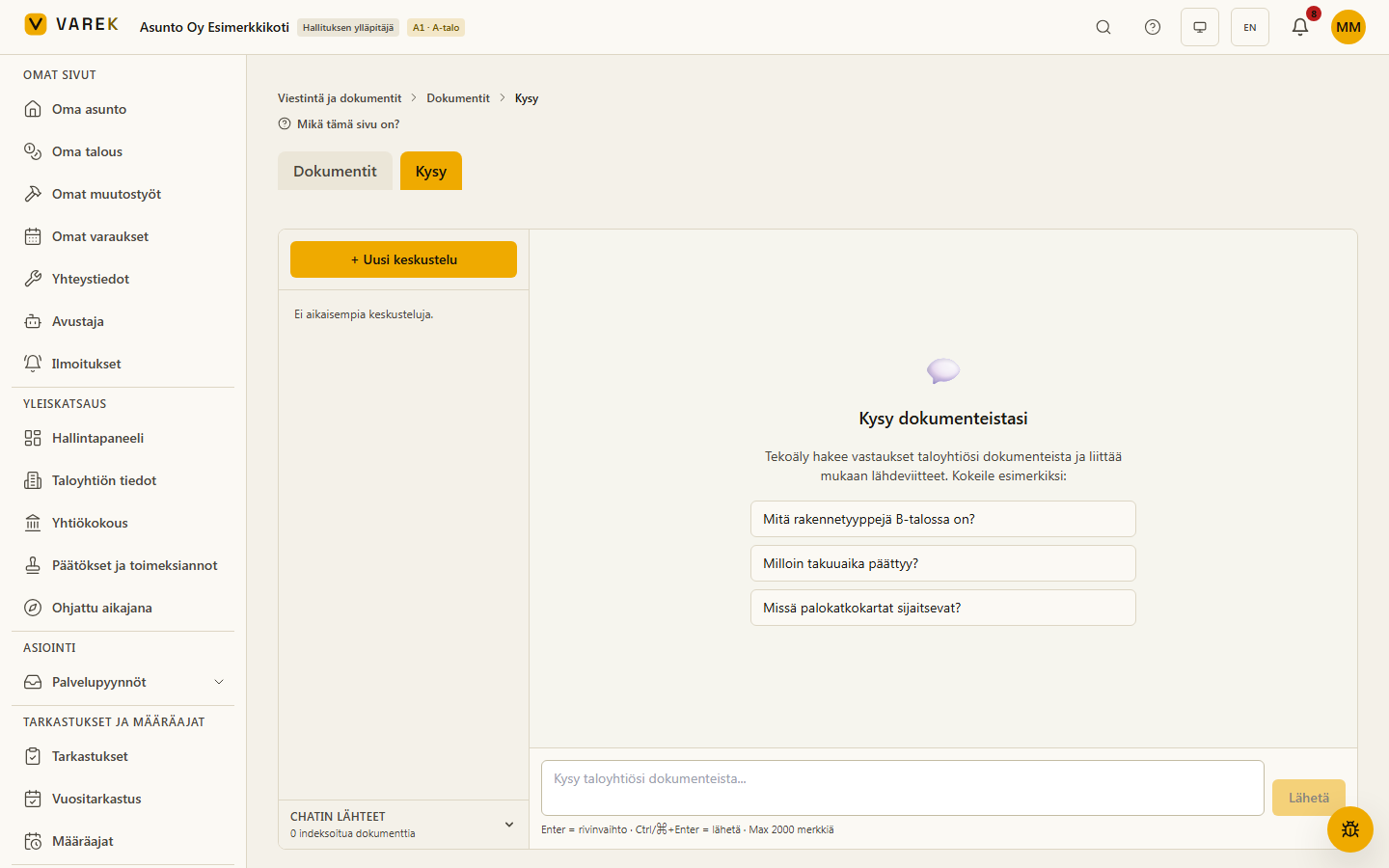
Previous conversations are kept in the left-hand list, where you can return to them or start a new conversation.
What the chat is based on
Section titled “What the chat is based on”The chat draws its answers only from the documents uploaded to your association — it does not invent information from elsewhere. For a document to be answerable, its content must be indexed. VAREK indexes uploaded PDF documents automatically.
For admins, a Chatin lähteet (Chat sources) panel below the conversation list lists the indexed documents and shows if a document’s indexing has failed. Failed documents can also be listed on the Documents page with the AI read failed filter option (in Manage mode) — from there you can re-run indexing, or the AI image analysis for drawings.
A scanned or image-based PDF — for example an old signed meeting minutes document — contains no text that automatic indexing could read. For such a document an admin can run text recognition with the Read text (OCR) action in the Documents page list view: recognition runs in your own browser (nothing is sent to outside services and it uses no AI credits), and once it finishes the document is answerable in the chat like any other. The button shows page-by-page progress, and the same button cancels the run.
Result
Section titled “Result”You get quick answers from the association’s documents without having to browse dozens of files yourself — and every answer states its source, so you can verify the information in the original document.
See also
Section titled “See also”- Managing documents — upload the documents the chat answers from.
- Documents — overview