Board decisions and assignments
On the Board decisions and assignments page the board records decisions
on matters that can be decided without a general meeting (Housing Companies
Act, chapter 7) — for example ordering extra keys, a small repair, or an
extra order from the maintenance company — and tracks that the agreed work
actually gets done. Every decision receives a consecutive number (e.g.
HTP-2026-001) and is stored in an immutable event log whose integrity can
be verified with one click.
You’ll find the page in the left menu’s Overview group under Decisions & assignments. The page is visible to the board (and the property manager) only; every board member sees the state of every assignment — including whether the work is done or not.
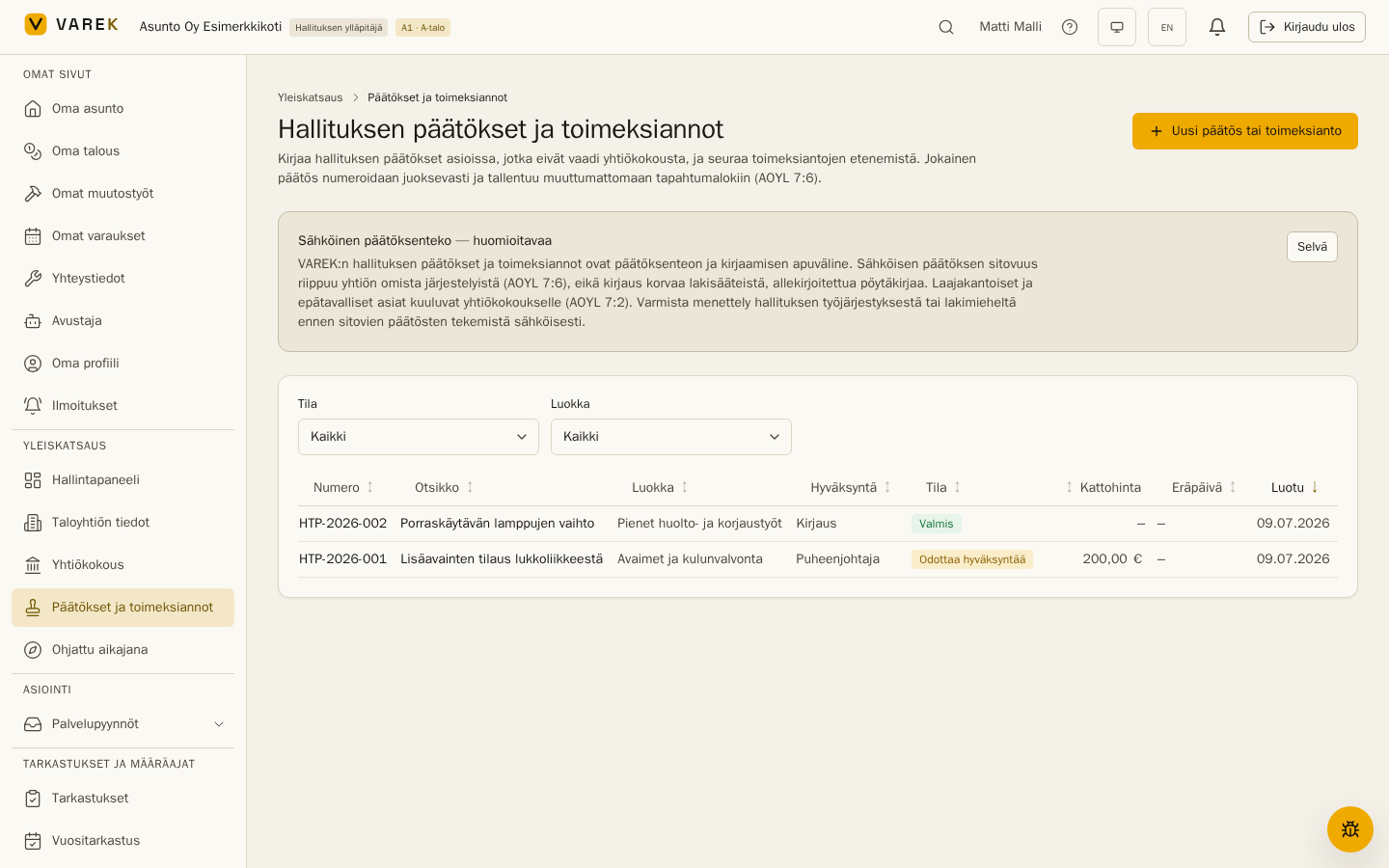
1. Create a decision or assignment
Section titled “1. Create a decision or assignment”Press New decision or assignment and fill in the form:
- Title and description — what is being decided or authorized and on what terms.
- Category — 14 ready-made categories (keys, minor maintenance, communications, purchases, tendering, urgent measures…). Picking a category prefills the approval tier with a legally conservative default and shows a category-specific hint — for example when the matter actually belongs to the general meeting.
- Approval tier — four tiers (see below). You can always raise the tier; lowering it below the category default requires attesting that the board has agreed on the procedure in its rules of procedure.
- Authorization ceiling € — the maximum price the assignee may act up to (e.g. “keys, at most €200”). The cost estimate is visible to the board only.
- Visibility — board-only by default; a decision can optionally be shown to shareholders too (without cost details).
A saved draft doesn’t trigger anything yet — you can edit it until you submit it for approval.
2. The four approval tiers
Section titled “2. The four approval tiers”| Tier | When | What happens |
|---|---|---|
| Recorded assignment | Day-to-day administration within an existing mandate (7:1/7:17): minor maintenance, notices | The approval is recorded immediately without a vote; the log names the recorder |
| Chair’s authorization | Matters delegated by the board or urgent ones (7:2.2): key orders, damage prevention | The chair gets a notification and approves or rejects with reasoning |
| Board majority decision | Work orders, purchases, contracts, policies (7:3) | Eligible voters vote; a majority of the whole board must be in favour |
| Unanimous board decision | Administrative and legal matters; binding electronic decisions (7:6) | Eligible voters vote; every one of them must be in favour |
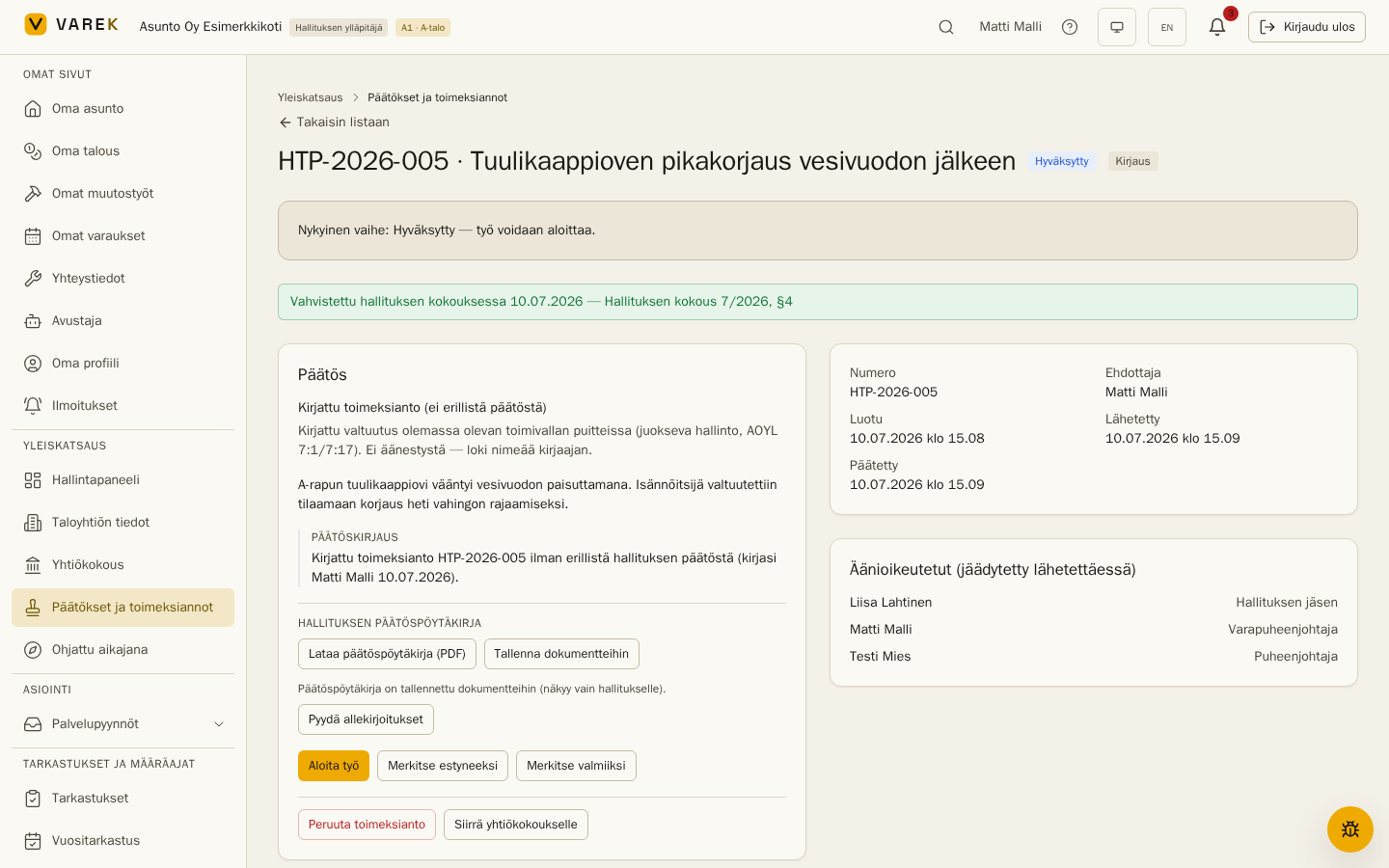
Urgent measures (e.g. containing a water leak) are always flagged to be ratified at the next board meeting — the page reminds you with a persistent banner, whose Record ratification button lets the chair or an administrator record the ratification (section 7). Until that is done, the chair and proposer are reminded every seven days.
3. Submit for approval
Section titled “3. Submit for approval”When the draft is ready, press Submit for approval. At that moment:
- the matter receives a consecutive number (
HTP-year-number; 7:6 requires consecutive numbering), - the set of eligible voters is frozen — later membership changes do not shift the basis of the decision, and the frozen composition is shown on the page,
- the approvers get a notification (“Awaiting your approval”).
A recorded assignment (tier 1) is approved at the same moment and sealed into the log.
4. Voting (majority and unanimous decisions)
Section titled “4. Voting (majority and unanimous decisions)”When a majority or unanimous decision is submitted for approval, the submitter’s own vote is recorded automatically in favour — submitting for approval is an endorsement, and the log attributes the vote to the submitter. The other eligible voters get a notification and vote on the decision page: For, Against or Abstain. A vote can carry a comment — for example a recorded dissenting opinion (Housing Companies Act 7:6).
- The tally is visible: the page shows the live result and a per-name roll-call (board decisions are not secret ballots).
- A majority decision needs more than half of the whole set of eligible voters — an abstention therefore raises the bar. A unanimous decision is defeated by even one against or abstain vote.
- The decision resolves automatically the moment the outcome is mathematically certain — on a three-member board the second vote in favour seals the approval without waiting for the third.
- You can change your vote until the decision resolves. The earlier vote does not disappear: it stays in the log as superseded.
- A disqualified member (7:4) marks themselves disqualified on the draft page before submission — they are left out of the eligible voters and do not raise the decision’s bar.
- The approval has a deadline (14 days by default). Voters who have not acted get a reminder three days and one day before the deadline, and once it passes the matter is marked expired — it can be copied into a new draft.
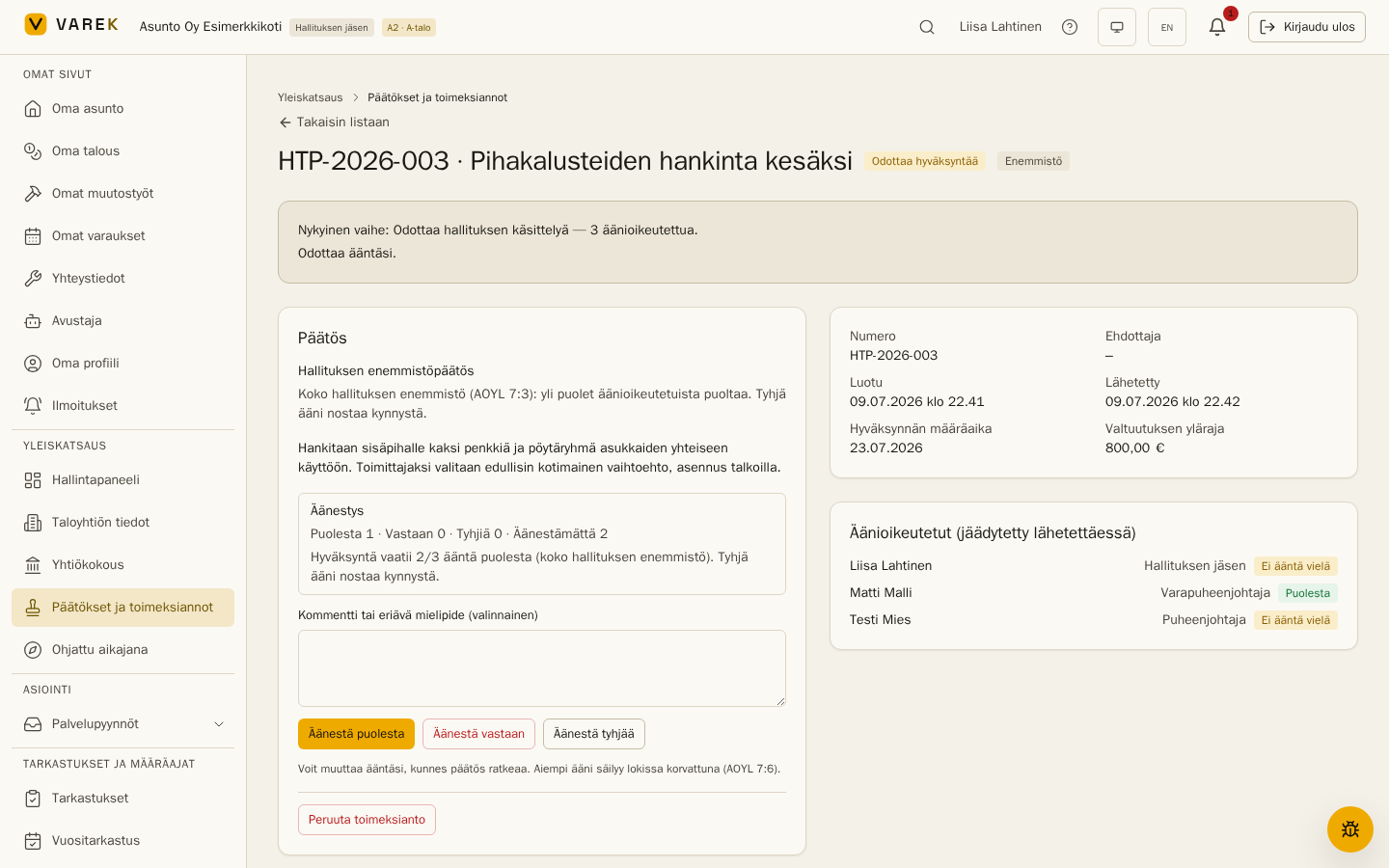
Voting by email link
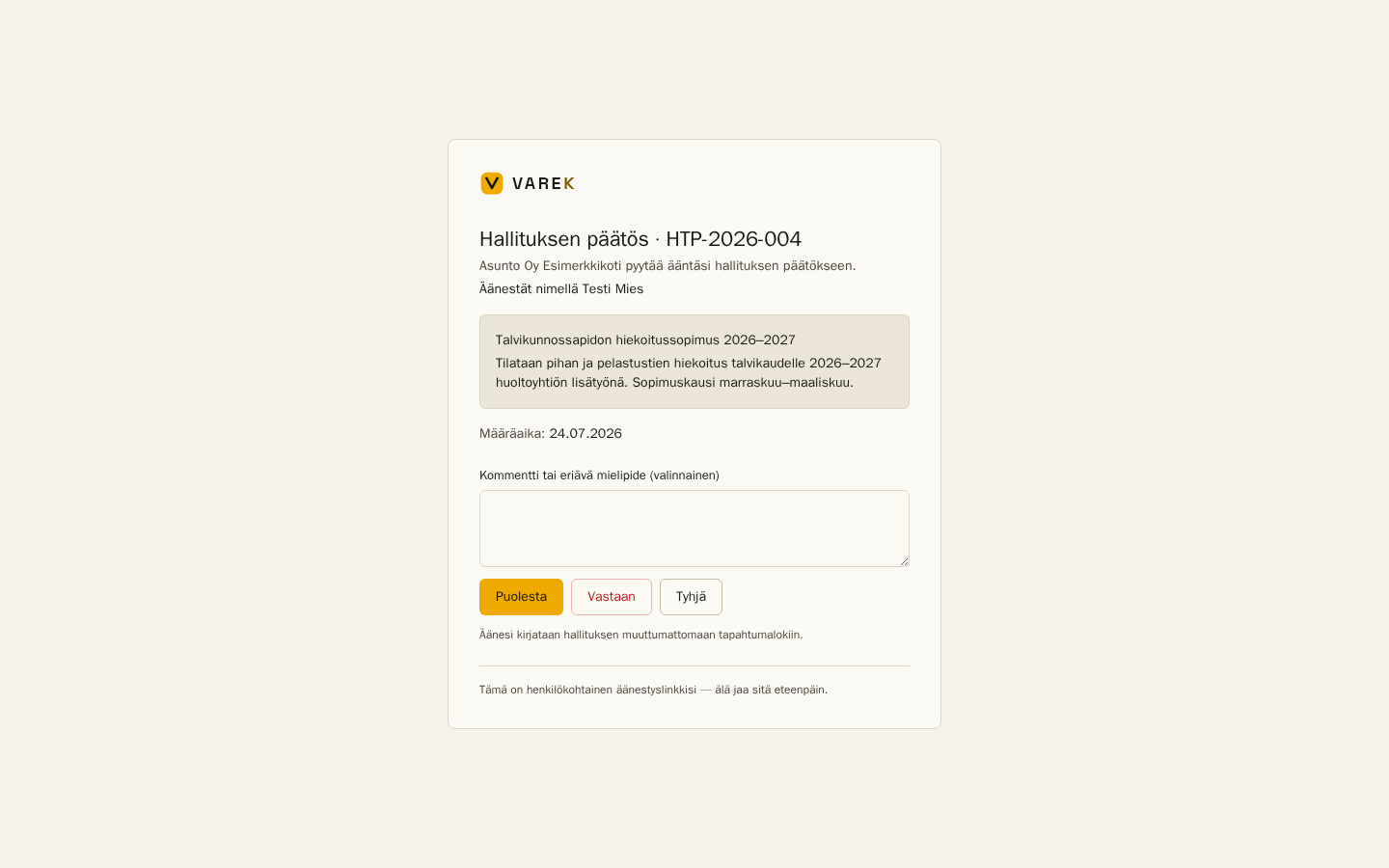
Section titled “Voting by email link”If an administrator has enabled email voting in the decision settings (section 10), the vote panel of an open decision gains a Send vote requests by email button. Every eligible voter who has not yet voted receives a personal, single-use link by email. The link opens a vote page without signing in: it shows the decision’s details and the deadline, and the vote is confirmed on the page — merely opening the email link does not cast a vote.
- On the page you choose For, Against or Abstain, and can attach a comment or a dissenting opinion. On the chair’s-authorization tier the options are Approve or Reject (rejecting requires a reason).
- A vote cast by email lands in the same tally and immutable event log as a vote cast in the app, marked as cast via the email link.
- Re-sending invalidates the earlier links. A person who has left the board cannot vote even if their link is still live.
5. Assignees — delegate the work and track acknowledgements
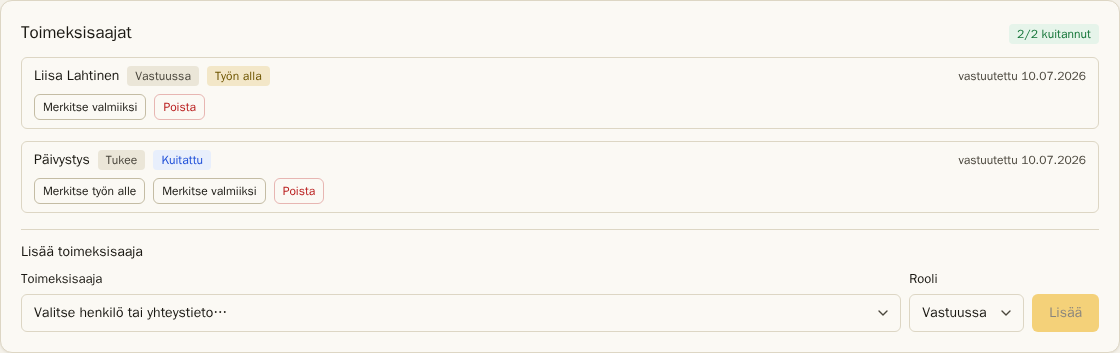
Section titled “5. Assignees — delegate the work and track acknowledgements”Once an assignment is approved, one or more assignees can be named in the Assignees panel on its page. The grouped picker offers:
- Property management — the property manager or the management company’s contact
- Board — board members
- Shareholders — the housing company’s shareholders
- Maintenance and services — service contacts from the Maintenance page (e.g. the maintenance company)
- External party — a free-form name and email for record-keeping
Each assignee gets a role: Responsible, Supporting or Informed. An app user receives a notification, acknowledges the task and updates its progress (In progress → Done) — or declines it with a reason. The panel’s “acknowledged” counter and status badges show the whole board where things stand. When every responsible assignee is done, the proposer is prompted to mark the whole assignment complete.
Email dispatch and the acknowledgement page (maintenance companies and external parties)
Section titled “Email dispatch and the acknowledgement page (maintenance companies and external parties)”Each assignee row has a Send by email button. A maintenance company or external party receives an email with the task description, the authorization ceiling and the due date, plus a personal acknowledgement link. The link opens an acknowledgement page where the recipient can — without signing in — acknowledge the task, mark it started or done, and leave a message for the board. A direct reply to the email is also recorded in the assignment’s event log, and the person who assigned the task is notified. Re-sending replaces the earlier link with a new one. The acknowledgement page shows only the task’s basic details — no cost estimate, no voting data.
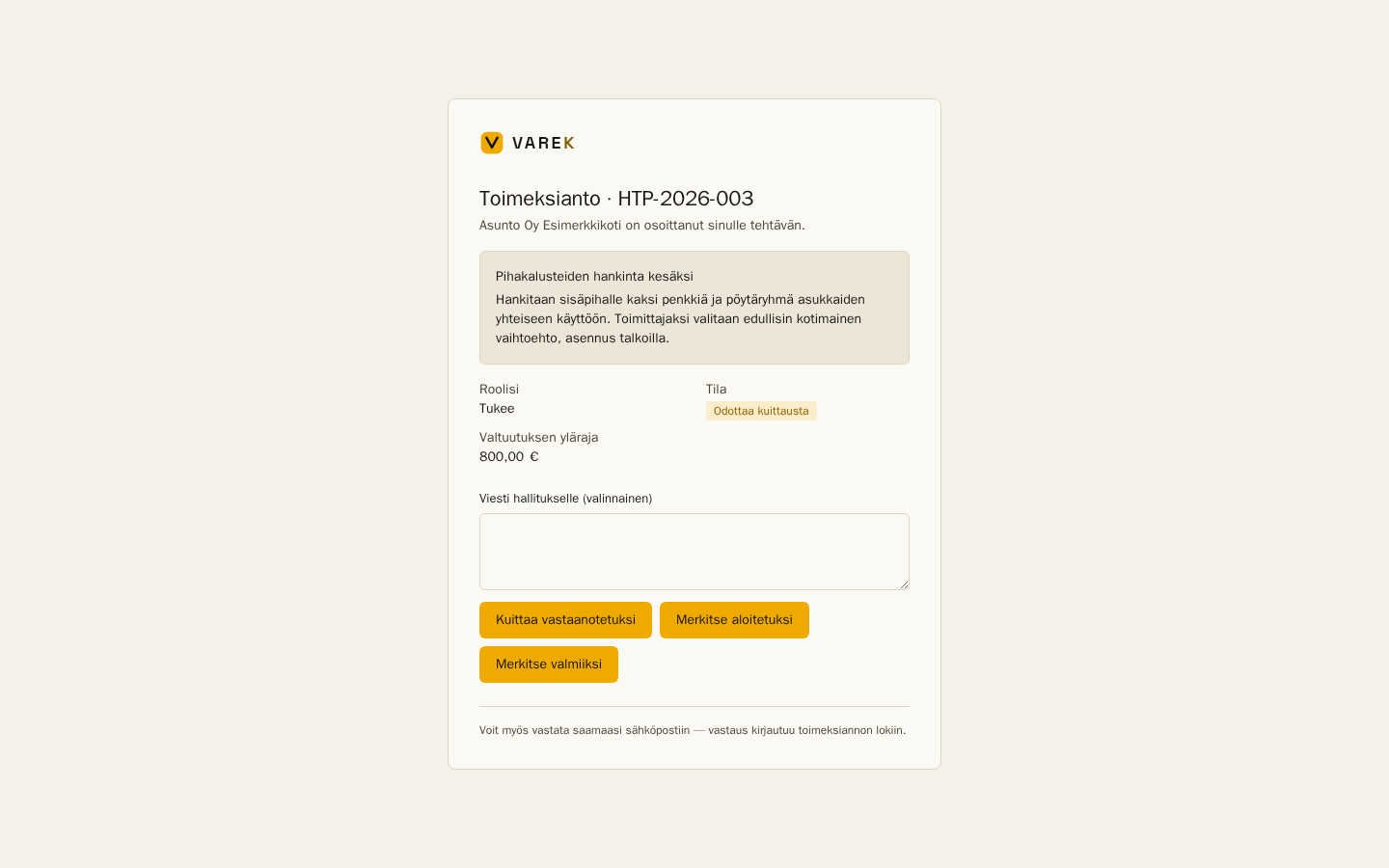
Your own tasks are collected in the “Assignments for me” view (button at the top of the list page), which works for shareholders too. Two new cards can be added to the dashboard: “Awaiting your approval” and “Assignments for me” (Edit dashboard).
6. Refer to the general meeting
Section titled “6. Refer to the general meeting”Far-reaching or unusual matters belong to the general meeting (Housing Companies Act 7:2). An administrator can refer an assignment to the general meeting with the Refer to the general meeting action: pick a meeting in preparation, and an agenda item is created directly on that meeting’s agenda — or mark the matter as referred without a meeting if none has been created yet. The referral is final for the assignment (status Referred to the general meeting), and the link to the meeting is recorded in both directions.
Matters can also flow the other way: the ticket and defect report pages have a board-only Turn into a board decision button that creates a pre-filled draft (the source is recorded on the assignment).
7. The decision record and ratification
Section titled “7. The decision record and ratification”Every resolved matter gets a Board decision record block. From it you can:
- Download the PDF (always in Finnish) — the record contains the decision, the per-name roll-call with any dissenting opinions, the set of eligible voters, the ratification status and an integrity hash.
- Save to Documents — the record is stored in the Documents section, visible to the board only. Once stored, Request signatures hands the record to the electronic signature flow (the same one used to sign general-meeting minutes). This requires the electronic signature service to be activated.
Ratification. A decision made urgently (a chair’s authorization or a measure flagged for ratification) shows a “to be ratified at the next board meeting” banner. The chair or an administrator records the ratification with the banner’s Record ratification button and adds a note (e.g. “Board meeting 7/2026, §4”). After recording, the page shows a green “Ratified at the board meeting …” line, and a permanent ratification entry stays in the event log. Until the ratification is recorded, the chair and proposer are reminded every seven days.
If Require a signed decision record is set in the decision settings, an approved decision shows a reminder banner until the signed record is stored — the reminder does not block the assignment from proceeding, however.
8. Tracking an assignment to done
Section titled “8. Tracking an assignment to done”An approved assignment moves through Approved → In progress → Done, with Blocked as an intermediate state (waiting on an external party, e.g. the maintenance company). Any board member can update the status, and the “Current phase” banner always tells who acts next. When marking done you can add completion notes — so the whole board sees at a glance what has been done and what hasn’t.
9. The immutable event log
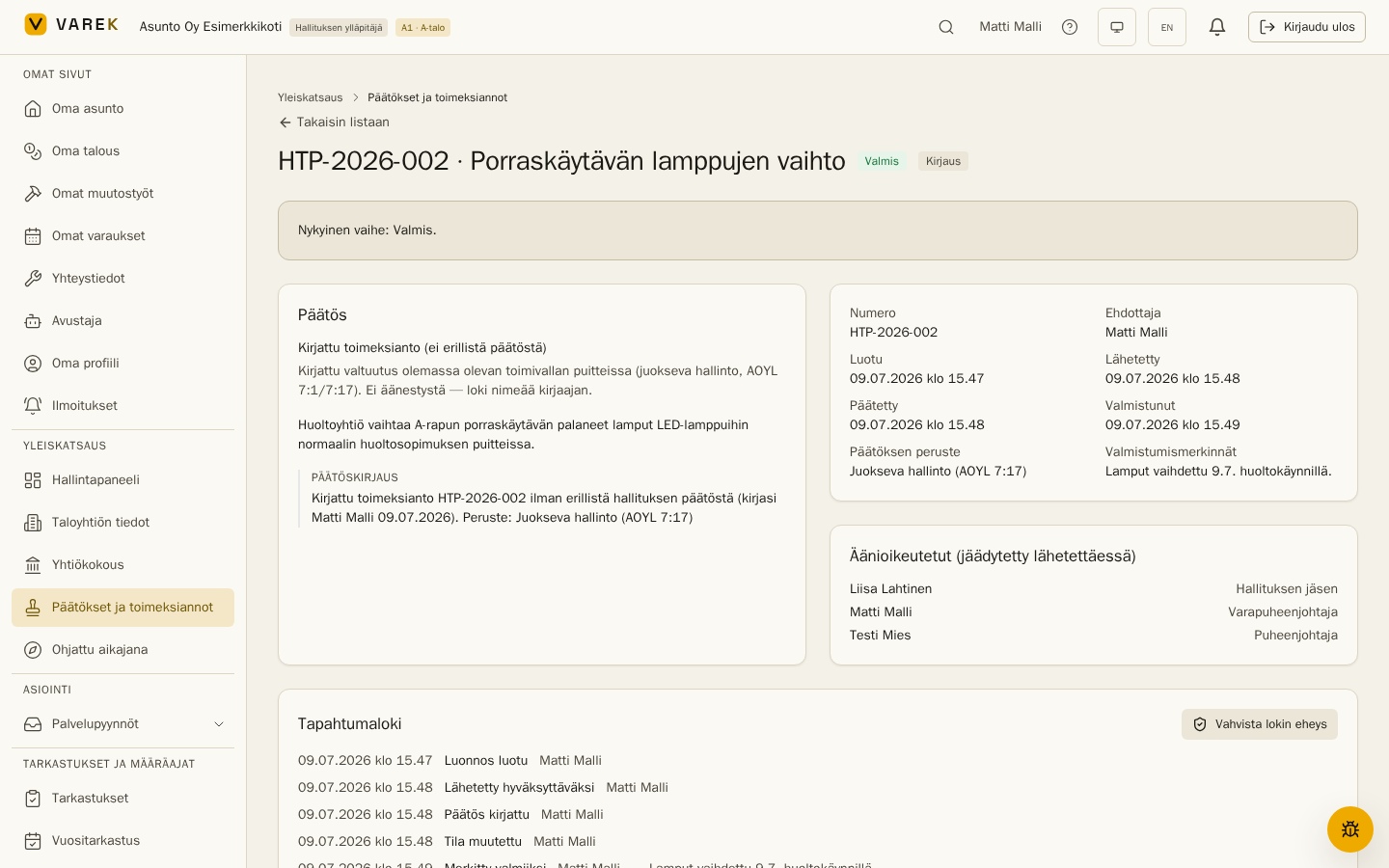
Section titled “9. The immutable event log”Every step — creation, submission, decision, status changes, cancellation — is recorded in an event log whose rows are chained with a cryptographic hash. Any retroactive edit breaks the chain, and the Verify log integrity button checks it at any time. The decision seal (the recorded resolution, the roll and the hash) stays immutable even when the board changes.
10. Decision settings
Section titled “10. Decision settings”An administrator opens the decision settings from the gear button next to New decision or assignment at the top of the list page. The settings apply to the whole housing company:
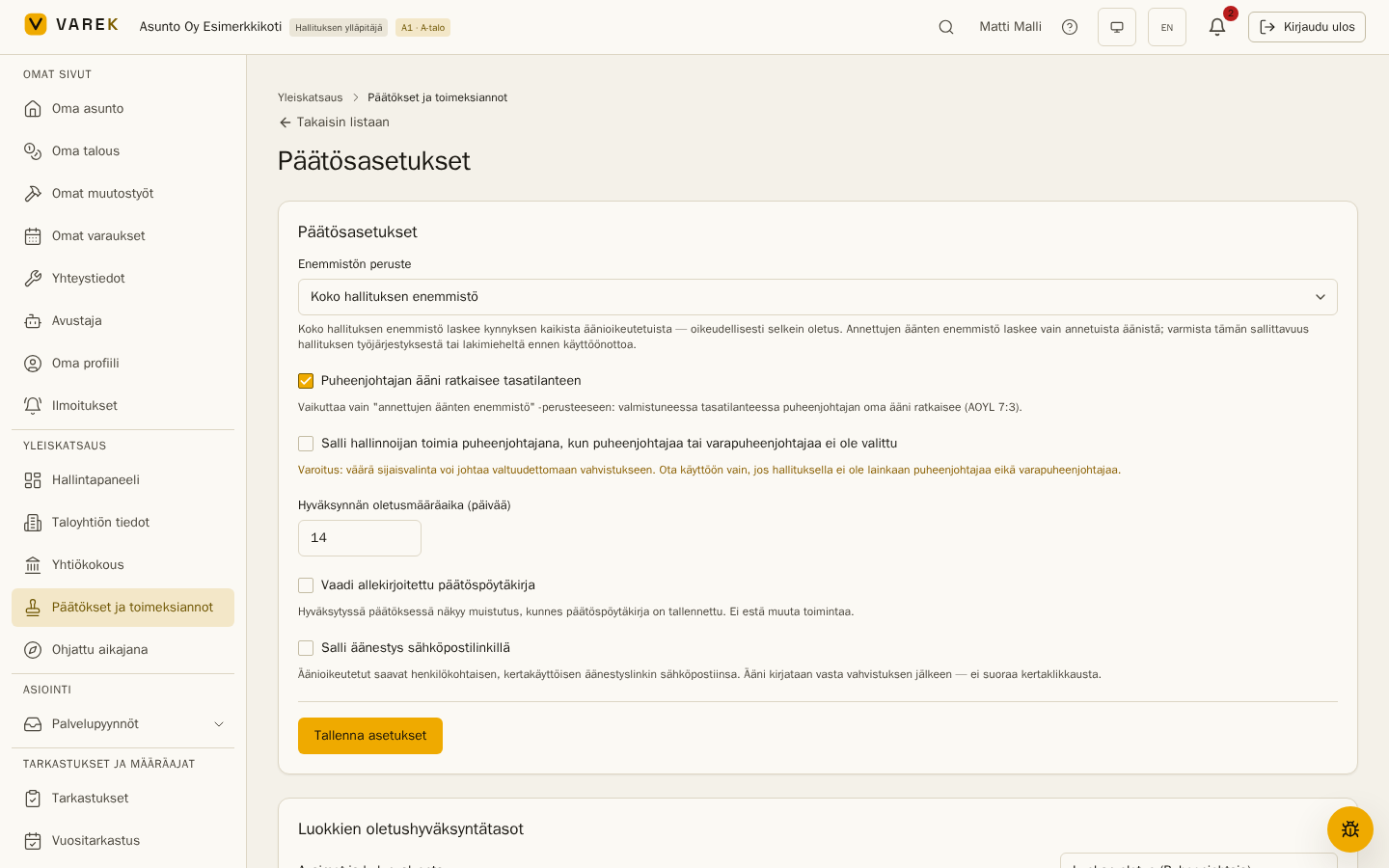
- Majority basis — Majority of the whole board (default) or Majority of the votes cast. The page reminds you to confirm the votes-cast basis from the board’s rules of procedure or a lawyer before using it.
- The chair’s vote decides a tie — affects only the votes-cast basis (Housing Companies Act 7:3).
- Allow the manager to act as chair — a fallback available only when the board has neither a chair nor a vice chair. The setting carries a warning.
- Default approval deadline — 1–90 days (14 by default).
- Require a signed decision record — an approved decision keeps a reminder banner until the signed record is stored. The reminder does not block the assignment from proceeding.
- Allow voting by email link — a one-tap opt-in, off by default (section 4).
- Per-category default tiers — each of the 14 categories’ default approval tier can be overridden or reset to the built-in default.
The settings are frozen into a decision the moment it is submitted for approval. Changing the settings afterwards therefore never affects an already-open vote — only new decisions submitted after the change.
Frequently asked questions
Section titled “Frequently asked questions”Who can create an assignment? Any board member and the property manager. A draft can be edited by its proposer or an administrator.
Who is eligible to vote? Accepted members holding a board role (chair, board member) in the housing company. The property manager does not vote unless separately seated on the board. A disqualified member (7:4) marks themselves disqualified on the draft page, which leaves them out of the decision’s basis.
What does an abstention do? An abstain is a cast vote that is not an endorsement: in a majority decision it effectively raises the bar (more than half of the whole set must be in favour), and it defeats a unanimous decision.
Can I change my vote? Yes, until the decision resolves. The earlier vote stays in the event log as superseded — nothing disappears.
What if no chair has been set? The chair’s-authorization tier cannot be used until the board position is set (Settings → Members). The vice chair acts as a substitute only when there is no chair at all.
Can a rejected decision be flipped to approved? Never. A rejected matter can be re-drafted under a new number — the old record stays immutable.
Does a shareholder assignee see the board’s confidential data? No. An assignee sees only their own task’s basic details and the authorization ceiling — the cost estimate and voting data stay board-only.
What if an assignee declines the task? The person who assigned it is notified. The board can return the task to pending for a new acknowledgement, or remove the assignment and name someone else — every step is recorded in the log.
Is the acknowledgement link safe? The link is personal and random, and it shows only that task’s basic details. Re-sending invalidates the earlier link. If a link ends up in the wrong hands, send the assignment again — the old link stops working.
Is voting by email safe? Yes. Each vote request is a personal, single-use link, and the vote is confirmed on the vote page — merely opening the link does not cast a vote. Re-sending invalidates the earlier links, and a person who has left the board cannot vote even with a live link. Every vote is recorded in the same immutable event log as votes cast in the app.
Does the decision-record PDF replace the signed minutes? No. The PDF documents the electronic decision, integrity hash included, but the statutory signed record remains the board’s own responsibility (see the note on the bindingness of an electronic decision at the top of the page). Signatures can be collected via the electronic signature flow once it is activated.