Your profile
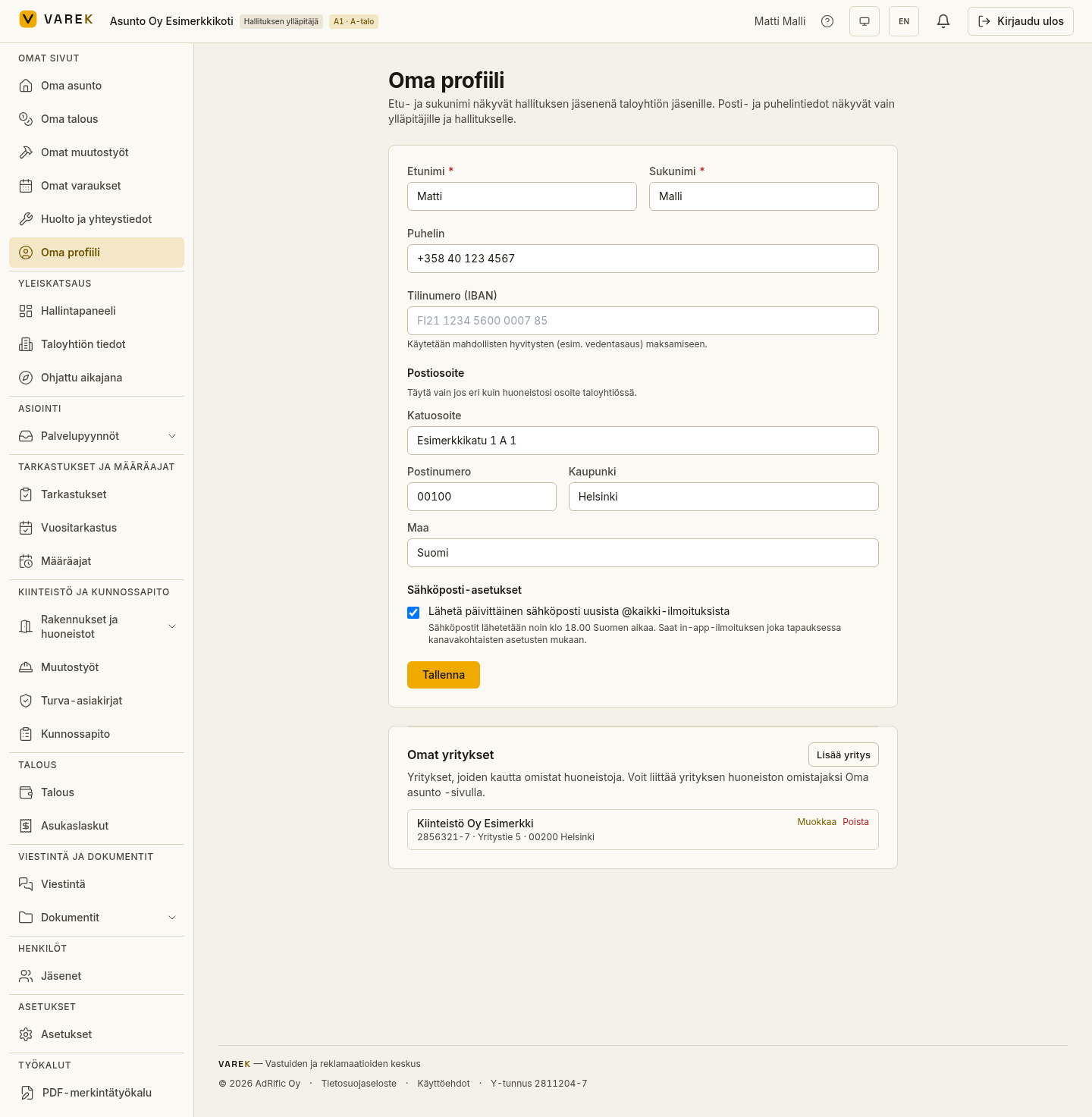
In your profile you manage your personal details: name, phone, postal address, email settings and password. The profile opens from the profile button in the top-right corner (profile icon → Oma profiili, My profile). Every user manages their own, regardless of role.
Updating your contact details
Section titled “Updating your contact details”- Open the profile button in the top-right corner → Oma profiili (My profile).
- Fill in Etunimi (First name) and Sukunimi (Last name) — both required — and your phone number if you like.
- Under the Postiosoite (Postal address) section fill in Katuosoite (Street), Postinumero (Postal code), Kaupunki (City) and Maa (Country). It’s used, for example, as the recipient address on paper invoices and letters. Fill it in only if it differs from your apartment address in the housing company.
- Save with Tallenna (Save).
Bank account number for refunds
Section titled “Bank account number for refunds”If you’re a shareholder or another non-consultant member, the form shows an IBAN field. VAREK uses it to pay out, for example, water-consumption credits or refunds of overpayments.
- Enter your account number in IBAN format (e.g.
FI21 1234 5600 0007 85). - VAREK checks that the account number is valid and formats it when you leave the field.
- Save with Tallenna (Save).
Email settings
Section titled “Email settings”Under Sähköpostiasetukset (Email settings) you can choose whether you receive the housing company’s announcements by email. Uncheck the box if you don’t want announcements by email — they still appear in the service. Save the change with Tallenna (Save).
My companies
Section titled “My companies”If you own apartments through a company, you can add your company at the bottom of the profile under Omat yritykset (My companies) — name, business ID and billing address. You can then request an apartment ownership in the company’s name. A company you add waits for board approval before it can be used.
Weekly email digest (board)
Section titled “Weekly email digest (board)”Board members can subscribe to a weekly digest: a once-a-week email summarizing the last 7 days in the housing company — new defect reports, claims and documents, plus deadlines due within the next 14 days. Subscribe per housing company under Viikkokatsaus sähköpostiin (Weekly email digest) on the profile page. If nothing happened during the week, no email is sent. You can unsubscribe from the same place at any time.
Changing your password
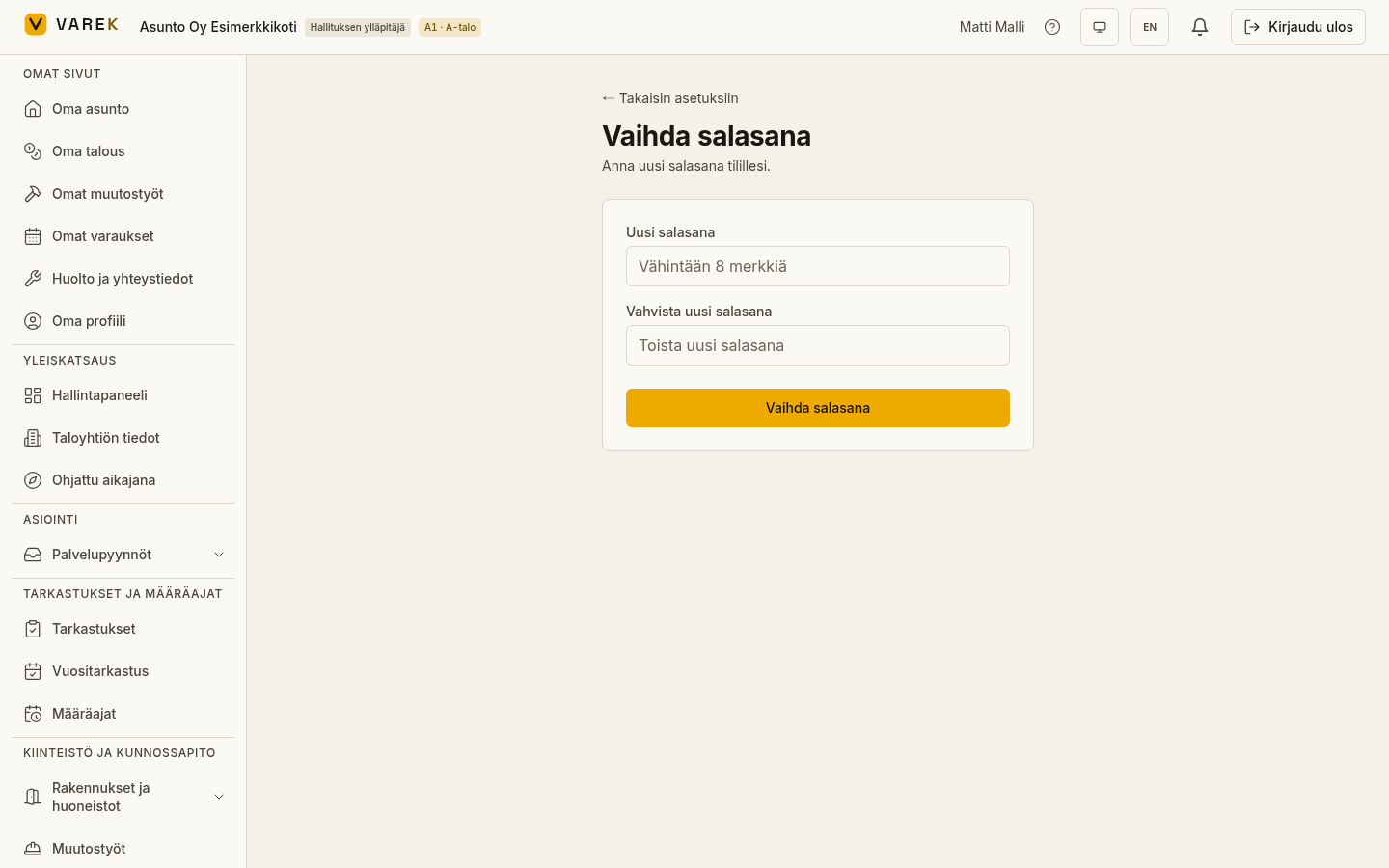
Section titled “Changing your password”- Open the Asetukset (Settings) page and choose Vaihda salasana → (Change password) from the Salasana (Password) card.
- Enter a new password (at least 8 characters) and repeat it in the confirmation field.
- Save with Vaihda salasana (Change password).
Result: the password changes immediately and you see a confirmation.
Language and theme
Section titled “Language and theme”You change VAREK’s language and appearance from the app’s top bar:
- Language — the language button in the top bar toggles between Finnish and English. The button shows the language you’ll switch to.
- Theme — the theme button cycles the options: follow system, light and dark.
Your choices are saved in your browser and persist for next time.
My permissions (consultants)
Section titled “My permissions (consultants)”In the consultant role you can see the permissions granted to you under Asetukset → Omat oikeudet (Settings → My permissions). The table lists each area and your access level (no access, view or edit). The board manages permissions — contact them if you need more.