Financial statements and year-end review
Once the bookkeeping is locked to the end of the fiscal year, VAREK produces the financial statements with one tool. The Financial statements button lives on the Finance page’s Bookkeeping tab.
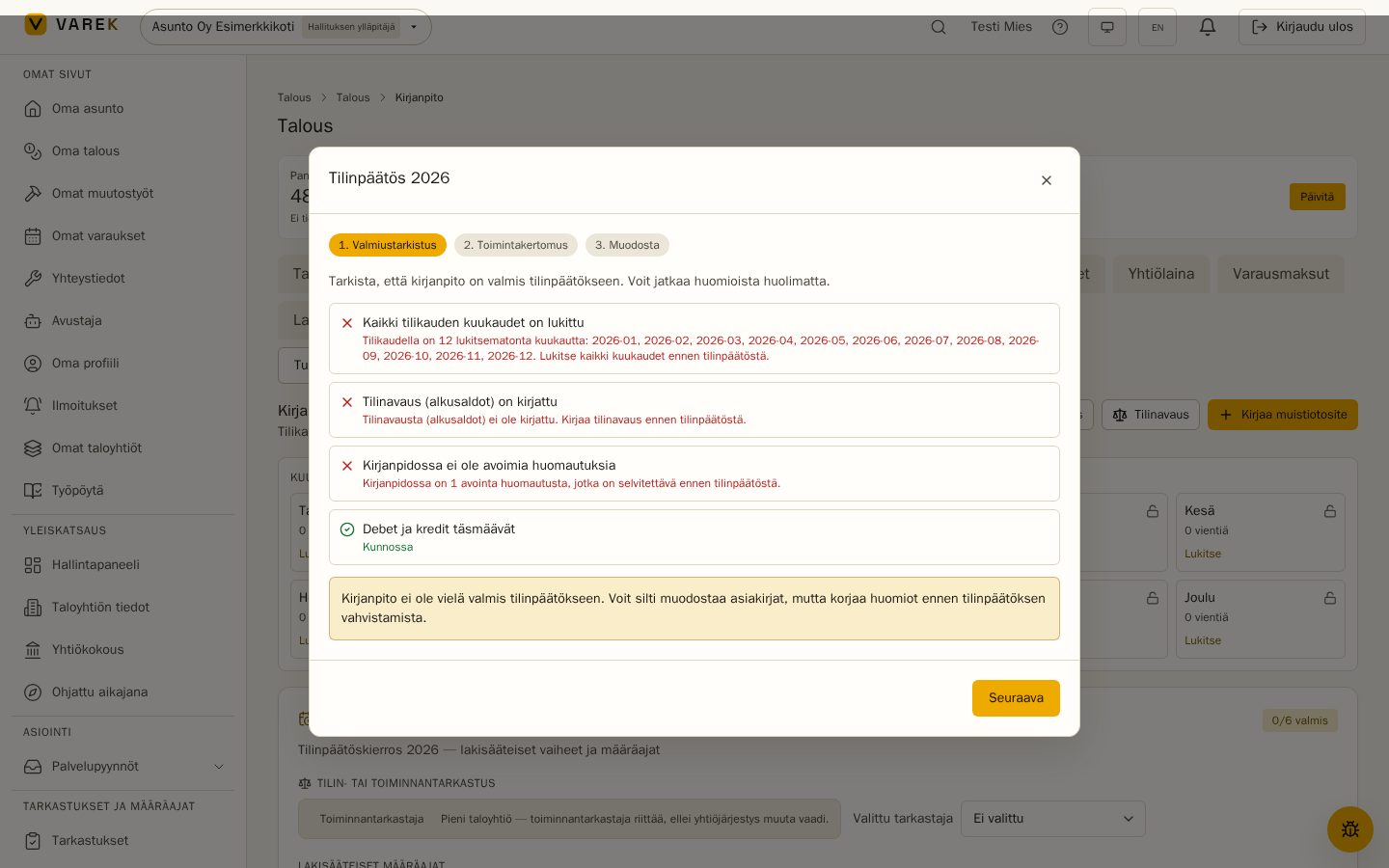
Generating the statements
Section titled “Generating the statements”- Readiness check — VAREK verifies that every month of the year is locked, opening balances are entered, there are no open bookkeeping warnings, and debits equal credits. You can proceed despite warnings, but resolve them before confirming the statements.
- Annual report — write the prose sections (general, significant events, administration, outlook). The figures — result for the year, operating margin, balance-sheet total, loans and the budget comparison — fill in automatically from the books. Texts are saved in your browser.
- Generate — VAREK downloads the full package as one ZIP:
- Income statement (statutory form) and balance sheet (PDF)
- Charge reconciliation (vastikejälkilaskelma, PDF)
- Annual report (PDF)
- Balance-sheet specifications, journal, general ledger and trial balance (CSV)
- A README recording the readiness status at generation time
The charge reconciliation and balance-sheet specifications can also be viewed and exported separately from the Bookkeeping tab.
Year-end review
Section titled “Year-end review”The Year-end review on the Bookkeeping tab collects the statutory close steps:
- Reviewer recommendation — VAREK tells you whether the company needs an authorised auditor or whether an activity inspector suffices (companies with at least 30 apartments need an auditor), and stores the choice.
- Statutory deadlines — statements within 4 months and the annual general meeting within 6 months of year end, with countdowns. Create deadlines adds both to the Deadlines page with reminders.
- Step-by-step checklist — from locking the books to confirming the statements. Several steps complete automatically: books-locked follows the month locks, the review report completes when you link the report document, and the general meeting when you link the meeting.
The auditor’s or inspector’s contact details can be stored in Contacts with their own type.