Users and roles
Users are managed in Henkilöt → Jäsenet (People → Members). There you see every user in the housing company, change their role, invite new members and handle join requests.
:::note Board only. The members page is for board admins. If you don’t have the rights, the view tells you so. :::
The page has four tabs: Jäsenet (Members), Kutsut (Invitations), Pääsypyynnöt (Access requests) and Huoneistopyynnöt (Apartment requests).

Member roles and board positions
Section titled “Member roles and board positions”On the Members tab each row has a Rooli (Role), Hallituspositio (Board position) and Huoneisto (Apartment).
- Open Henkilöt → Jäsenet.
- Change a member’s account role from the Rooli dropdown: Shareholder, Accountant or Main admin.
- Add a member to the board by choosing a position from the Hallituspositio column (chair, vice chair, secretary, treasurer or member). The chair automatically gets admin rights; the others become board members.
- Remove a member from the board by choosing – Ei hallituksessa – (Not on the board), which returns the role to Shareholder.
- Grant or remove admin rights with the Ylläpitäjä (Admin) checkbox (requires a board position; the chair always has rights on).
Result: the change saves immediately, and the member gets the new rights on their next sign-in. Only the organisation’s main admin can grant the Main admin role.
Consultant permissions
Section titled “Consultant permissions”A consultant’s permissions are fine-grained and granted individually. On the consultant’s row open Hallitse oikeuksia (Manage permissions) and choose which areas they can reach and at what level (view or edit).
Linking apartments to members
Section titled “Linking apartments to members”Once a member is accepted, you can link them to an apartment from the Hallitse (Manage) button in the Huoneisto column.
- Choose the apartment and the relation: Owner and/or Resident.
- Enter an ownership share as a percentage if needed.
- Save with Lisää (Add).
From the same view you can edit the ownership share, transfer the ownership to another member (e.g. on a sale), or remove the link. Ended ownerships remain visible in a history list.
Inviting a new member
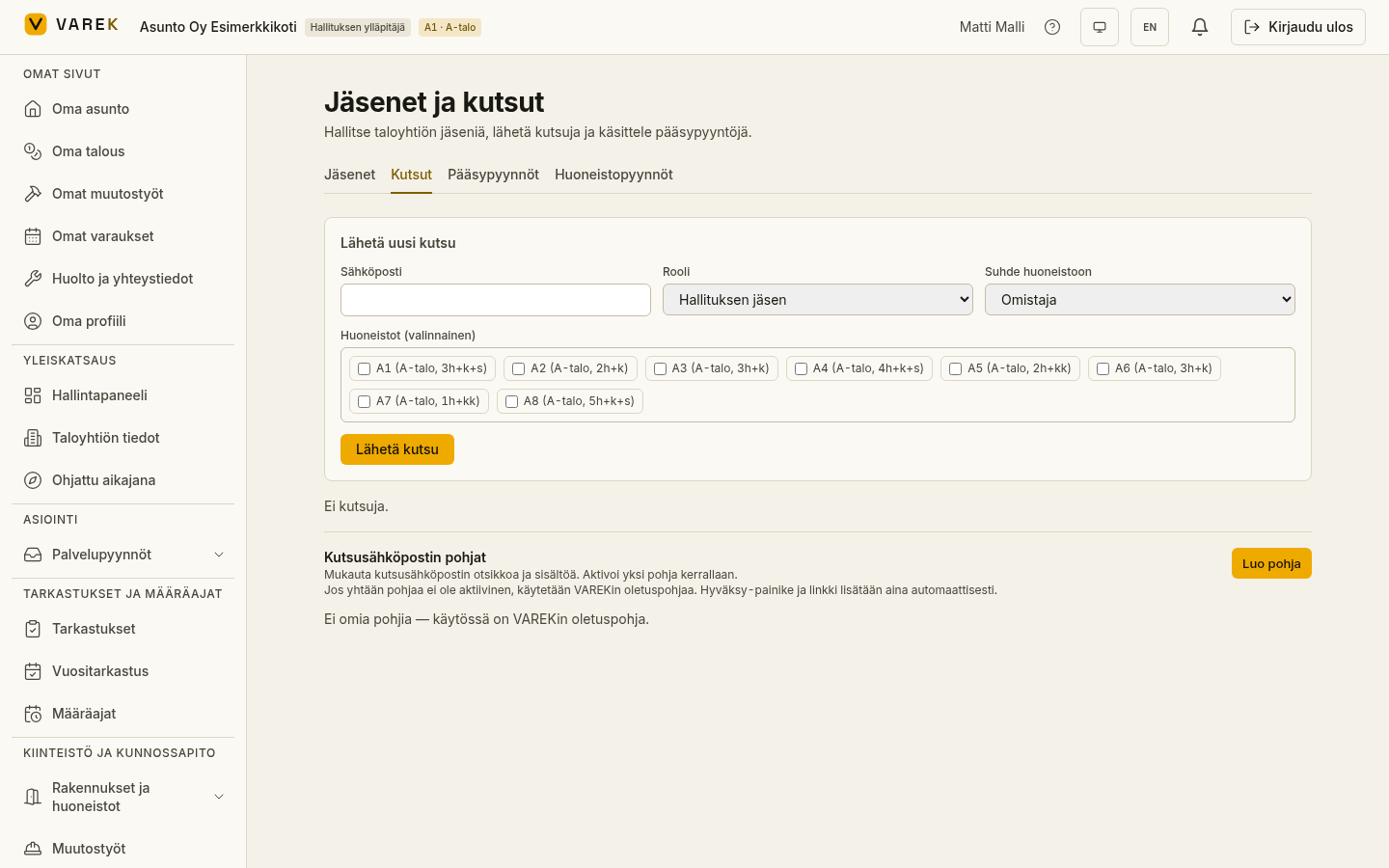
Section titled “Inviting a new member”- Open the Kutsut (Invitations) tab.
- Enter the member’s email and choose a role (board admin, board member, shareholder or accountant).
- For a shareholder/resident, choose the relation (owner or resident) and, optionally, one or more apartments.
- Send the invitation with Lähetä (Send).
Result: the member receives a join link by email. If the email fails to send, a copyable link appears that you can forward yourself. An open invitation can be revoked from the invitation list.
Handling join requests
Section titled “Handling join requests”When a user requests to join via the join link, the request appears on the Pääsypyynnöt (Access requests) tab.
- Check the applicant’s name, email and the apartment they stated. VAREK pre-selects the apartment automatically even when the applicant wrote it loosely (e.g. “apt 19”, “A-19” or just a number). If the input fits several apartments, VAREK suggests the closest options as one-click choices.
- Choose the role and apartment links.
- Approve with Hyväksy ja lähetä (Approve and send) or reject with Hylkää (Reject) — you can give a reason.
Handled requests move to the Käsitellyt (Handled) list at the bottom of the page.
Apartment ownership requests
Section titled “Apartment ownership requests”Shareholders and companies can request that an apartment ownership be linked to them. These requests appear on the Huoneistopyynnöt (Apartment requests) tab. Check the apartment, relation and any ownership share, then Hyväksy (Approve) or Hylkää (Reject) the request.
Editing a member’s contact details
Section titled “Editing a member’s contact details”A board admin or property manager can update a member’s basic details directly from the Members list, without the member having to make the changes themselves.
- Open Henkilöt → Jäsenet (People → Members).
- Click Muokkaa tietoja (Edit details) on the member’s row.
- Update the fields you need: first name, last name, phone number or postal address.
- Save with Tallenna (Save).
The change is saved to the member’s profile immediately.
Removing a member
Section titled “Removing a member”Remove a member with the Poista (Delete) button on their row. To confirm, type POISTA into the field, after which the removal is confirmed. You cannot remove your own membership.