Claims to the builder
A claim (reklamaatio) gathers one or more open defects into a single claim letter that the housing company sends to the builder. VAREK helps you compose the letter, generates a PDF of it and sends it by email directly from the service — and it records the send history and the builder’s responses.
Assemble a claim from open defects
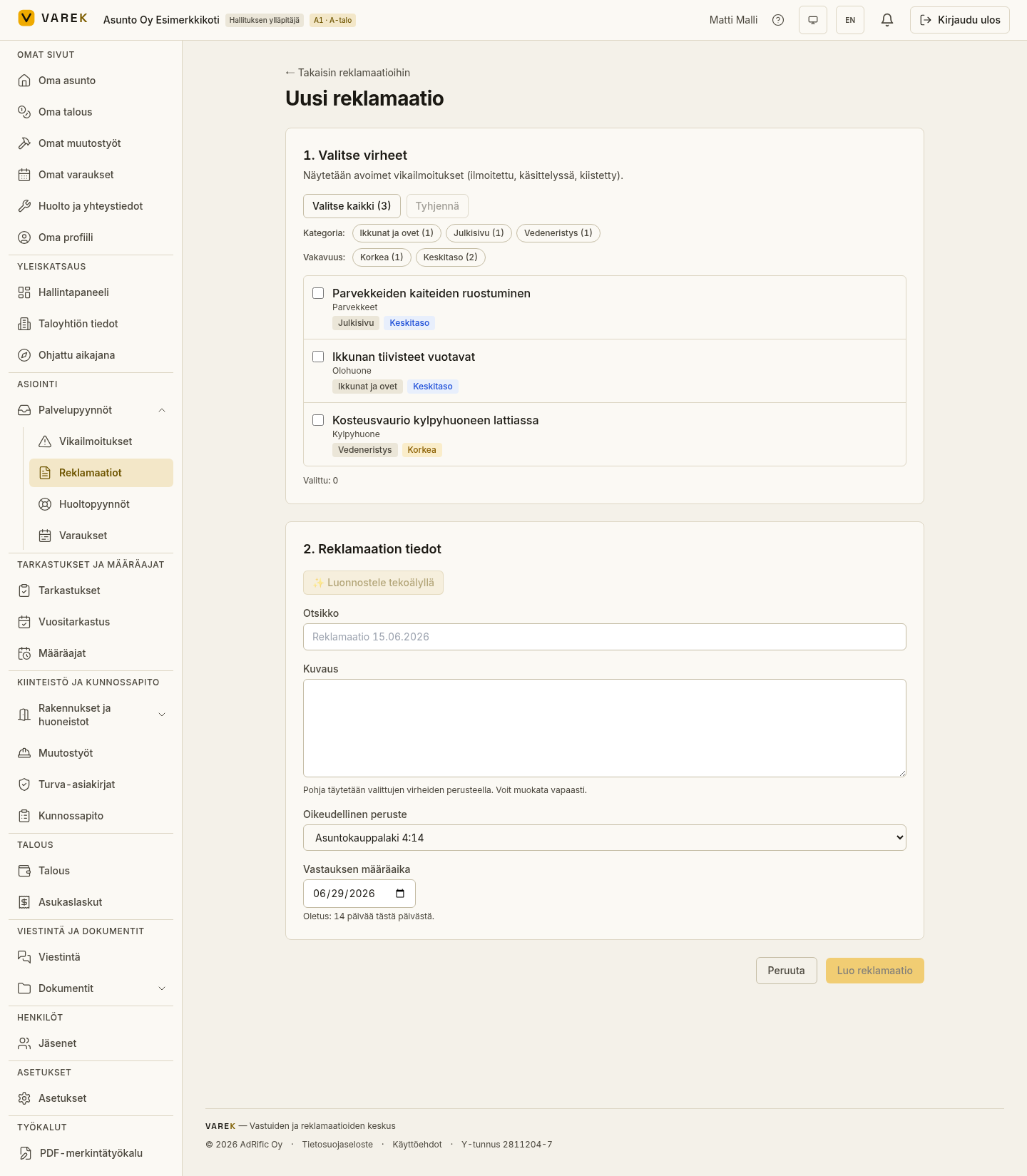
Section titled “Assemble a claim from open defects”- Open Reklamaatiot (Claims) and choose Uusi reklamaatio (New claim).
- Step 1 — select defects. The list shows open defects. Tick individual ones, or use the quick picks: all, by category or by severity.
- Step 2 — claim details. Give a title and description. The description is pre-filled from the selected defects automatically, until you edit it yourself.
- Choose a legal basis from the menu (e.g. Asuntokauppalaki 4:14) or type your own free-text basis.
- Set the response deadline for the builder (14 days by default).
- Save with the create button. You go to the claim’s page.
Use a template or an AI draft
Section titled “Use a template or an AI draft”In step 2 you can speed up the work in two ways:
- The template selector fills the title, description and legal basis from a ready-made model.
- An AI draft composes finished claim text from the selected defects. The draft is always editable, and nothing is sent automatically.
The AI draft requires a suitable subscription. If the feature isn’t available, you’ll see a link to settings instead.
Large defect counts and recurring defects
Section titled “Large defect counts and recurring defects”The AI draft also works with the entire defect register at once (up to 200 defects):
- A defect with the same name in several places is collated into a single line in the letter listing every location — for example “Window seal loose — 8 findings: A 12; B 5; …”.
- If the same defect recurs in at least three places, the letter automatically adds a demand that the builder investigate, at its own cost, whether the same fault is also present in spaces not yet inspected and report the results to the housing company.
- When there are many defect types, the letter body summarizes them by category and a complete numbered defect list is appended to the end of the letter automatically. The list itemizes every observation with its location and description, so it serves as the letter’s formal defect appendix.
Drafting from a large defect register can take about a minute — the page shows progress and the drafting can be cancelled. If something goes wrong, the reason is shown on screen in plain language.
How precedent citations are verified
Section titled “How precedent citations are verified”If your subscription includes the precedent database, the AI draft can cite the KRIL decision recommendations and FISE building-defect cards matched to your defects. Every citation is verified individually:
- The AI assesses each matched case and explains whether it supports this specific claim.
- Only verified cases are added to the letter’s Ennakkoratkaisukäytäntö (precedent practice) paragraph — the service inserts them, not the AI, so a fabricated or misapplied case number can never end up in the letter.
- The Precedent assessment table below the draft shows which cases were cited and why some were left out.
Download the claim letter as a PDF
Section titled “Download the claim letter as a PDF”On the claim’s page, Lataa PDF (Download PDF) generates the claim letter with the housing company’s and the builder’s details, the list of defects and the response deadline. You can review the letter before sending or send it through another channel.
Send the claim to the builder
Section titled “Send the claim to the builder”- On the claim’s page, press Lähetä (Send).
- Fill in the recipient (the builder’s email). You can add several addresses separated by commas and cc addresses, e.g. for the property manager.
- Review the subject and cover message — both are pre-filled and editable.
- The claim letter is automatically attached as a PDF.
- Send the message. It goes out from VAREK’s address, and replies are routed to your own email.
After sending, the claim is recorded in the send history, and its status updates to sent.
Builder response link and responses
Section titled “Builder response link and responses”- Response link: you can create a no-login link for the builder through which they can respond to the claim. The link is copied to the clipboard and can be revoked if needed.
- Builder responses are collected on the claim’s page in their own section.
Status and comments
Section titled “Status and comments”On the claim’s page, management can change the status (draft → sent → …) according to the allowed transitions. Board members can comment on a claim. The claim’s timeline shows the key events.
Claim outcome
Section titled “Claim outcome”When a claim reaches a terminal status (resolved, partially resolved, escalated to KRIL, escalated to court or expired), management roles (board_admin / property manager) can record how the matter was settled.
Press the Kirjaa tulos (Record outcome) button on the claim’s page. In the dialog that opens:
- Outcome type — repaired / partially repaired / price reduction / settlement / builder refused / expired
- Price reduction (€) — optional, if the outcome involved a monetary amount
- Decision date — when the matter was resolved
- Notes — a free-text note, e.g. about conditions or a reference number
- Confidential settlement (NDA) — tick if the settlement is subject to a non-disclosure obligation; pre-checked automatically for settlement and price reduction outcomes
The recorded outcome appears on the claim’s page and in the timeline. Only the board_admin and property manager (isännöitsijä) roles can record or edit the outcome.