Join passwords for external chat
An external channel (Connect) can be protected with a join password, so the link alone isn’t enough — the guest also has to enter a password to reach the conversation. This adds security when you chat with external parties.
Protection modes
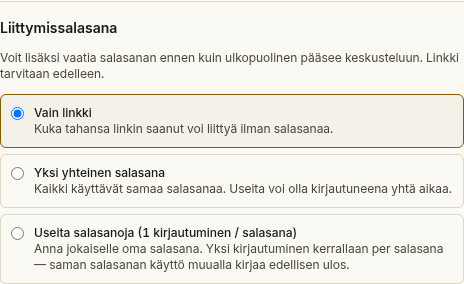
Section titled “Protection modes”Open the external channel’s settings (⚙) and scroll to Join password. Choose one of three modes:
- Link only — no password; anyone with the link can join.
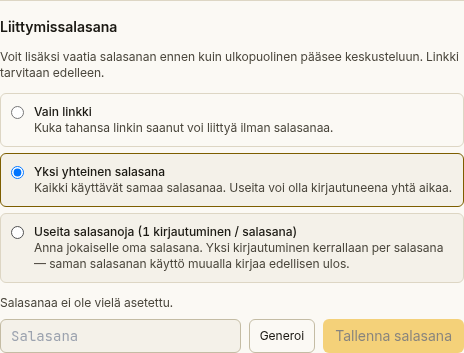
- One shared password — a single password for everyone; an unlimited number of guests can be present at the same time.
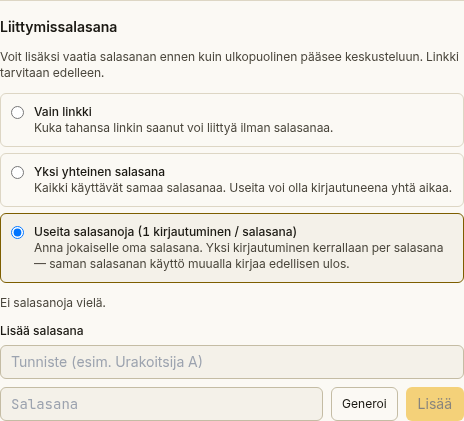
- Several passwords — you create many passwords, each allowing only one active session at a time. If the same password is used again elsewhere, the earlier session is dropped.
Set one shared password
Section titled “Set one shared password”- Choose the One shared password mode.
- Type a password into the field or generate one with the Generate button.
- Save the password.
- The password is shown once after saving — copy it somewhere safe with the Copy button before you close the view.
Create several passwords
Section titled “Create several passwords”- Choose the Several passwords mode.
- Optionally give the password a label (e.g. the contractor’s name) so you can recognise it later.
- Type a password or generate one with the Generate button.
- Select Add. Copy the shown password somewhere safe.
The list shows each password’s label, its last-used date, and whether it has an active session right now. You can remove a password with the Remove button on the row.
How a guest joins
Section titled “How a guest joins”When the channel is protected, a guest who opens the link sees a password field. They enter their name and the password, and can then join the conversation. If a guest’s session is dropped (in the several-passwords mode because a password was reused), they see a notice and return to the password field.