Service-request overview and replying
In VAREK the board and admins get a single view that gathers all of the housing company’s requests. The board also replies to maintenance requests and manages their status.
:::note For the board only. The service-request overview is shown only to board members and admins. Shareholders use the dedicated views of each area instead. :::
The overview
Section titled “The overview”- Open “Palvelupyynnöt” (Service requests,
/palvelupyynnot) from the menu. - You’ll see a list that gathers all of the housing company’s:
- defect reports,
- claims,
- maintenance requests and
- bookings.
- Narrow the view with the filters at the top by type (All, Defect report,
Claim, Maintenance request, Booking). Your choice is written into the page
address (
?type=…), so you can bookmark a filtered view or share it as a link. - Open a single row by clicking it — you’ll go straight to that request’s own view.
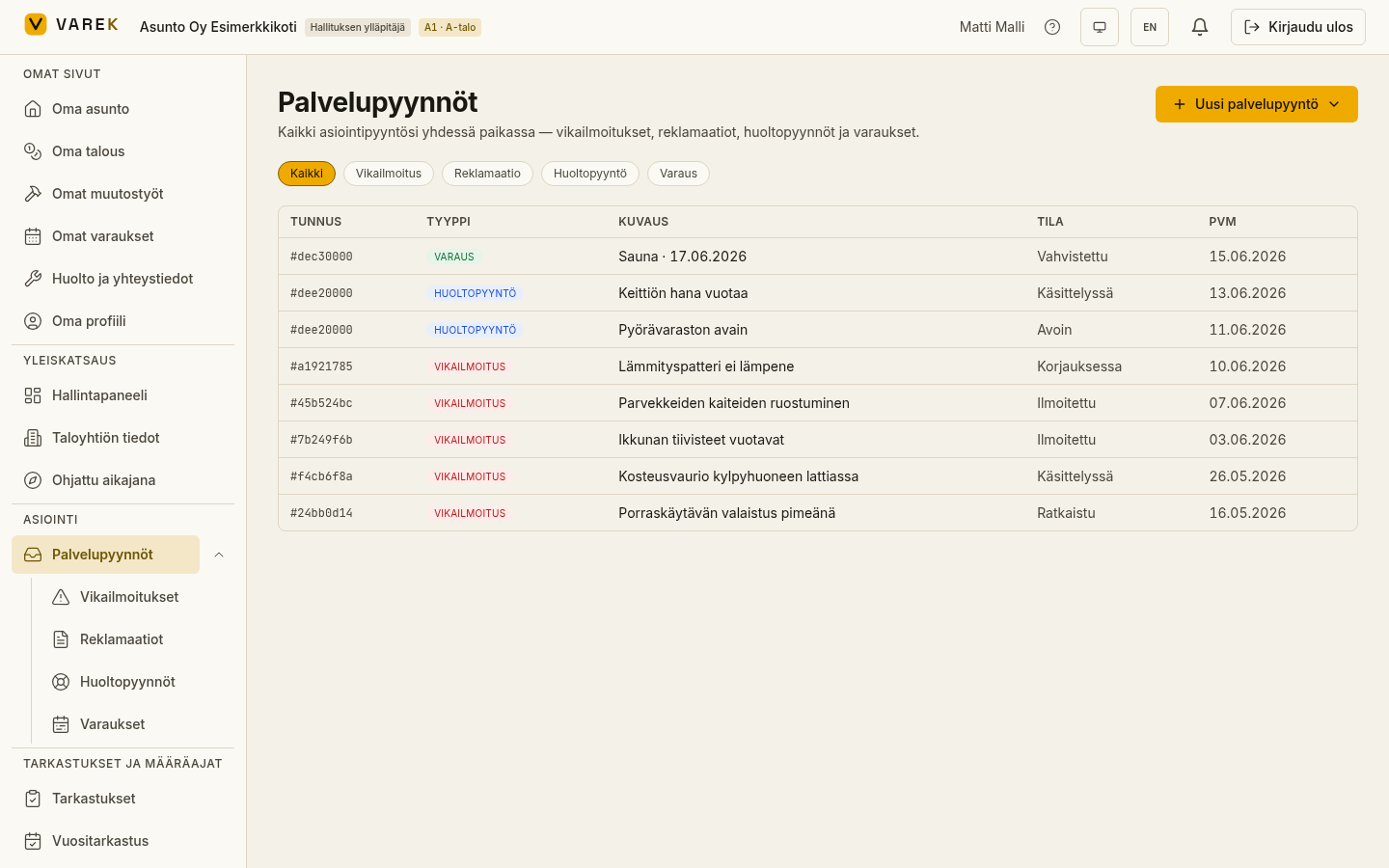
The “Uusi palvelupyyntö” (New service request) button at the top takes you straight to creating any type of request: a defect report, maintenance request, inquiry, disturbance report, initiative, claim or booking.
Replying to a maintenance request
Section titled “Replying to a maintenance request”- Open Maintenance requests (
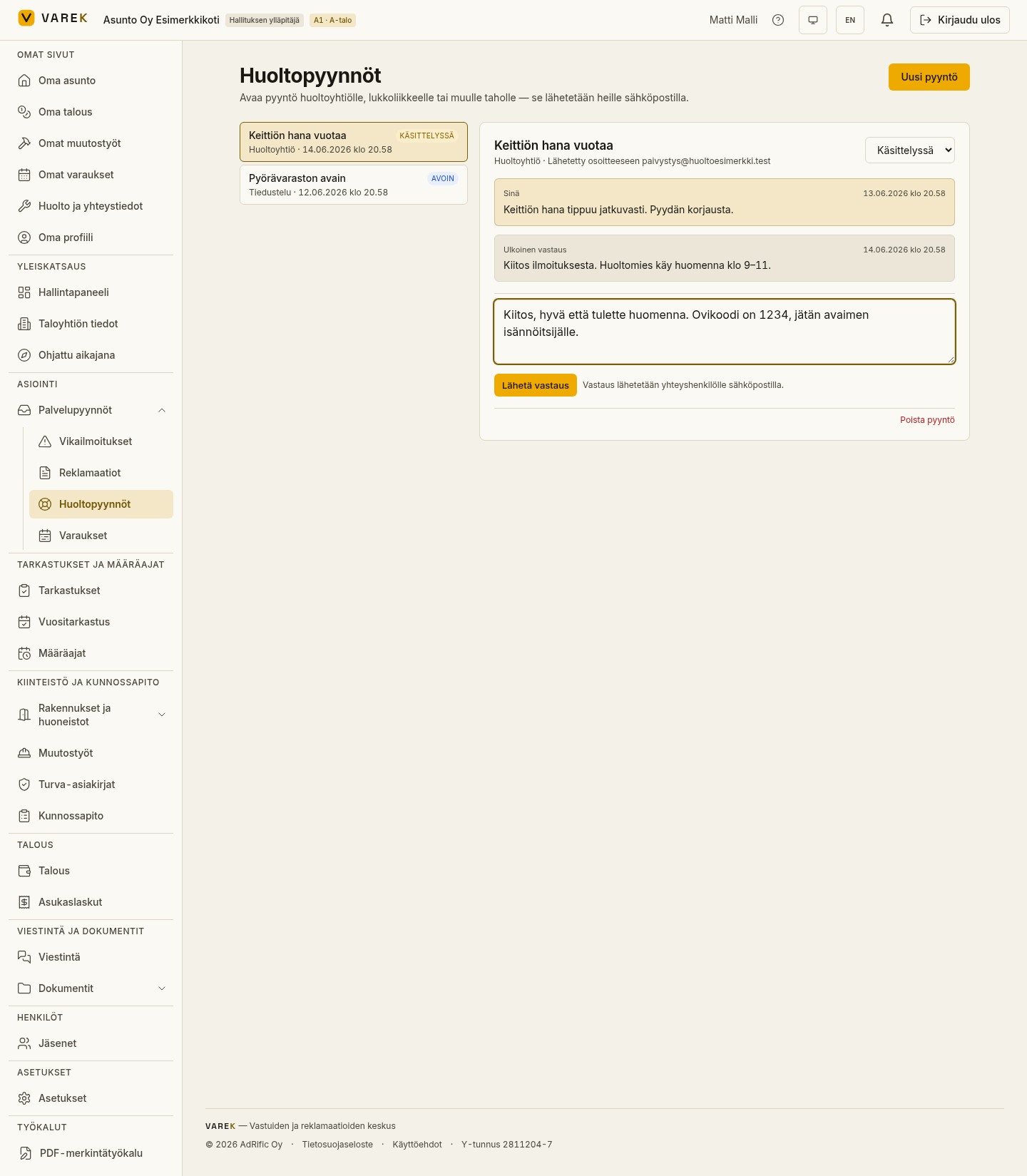
/tiketit) and select a request from the list. - Write your reply in the reply field at the bottom.
- Choose “Send reply”.
The reply is emailed to the contact and appears in the message thread. When you reply to an open request, its status automatically moves to “In progress”.
Changing the status
Section titled “Changing the status”You can change a request’s status from the selector at the top of the thread. The statuses are:
- Open — a new, unhandled request.
- In progress — the request is being handled.
- Waiting — waiting for a reply from the contact or the shareholder.
- Resolved — the matter has been handled.
- Closed — the request is closed and can no longer be replied to.
Deleting a request
Section titled “Deleting a request”A board admin (chair) can delete a maintenance request entirely using the “Delete request” action at the bottom of the request.