Paying an invoice
Housing-company invoices are paid the Finnish way — directly in your bank. VAREK has no separate pay button and no card payment. This page explains where to find the details you need to pay and how to download a printable PDF invoice with the barcode.
These instructions apply to every member of the housing company who has open invoices, except consultants (asiantuntija).
Payment details at a glance
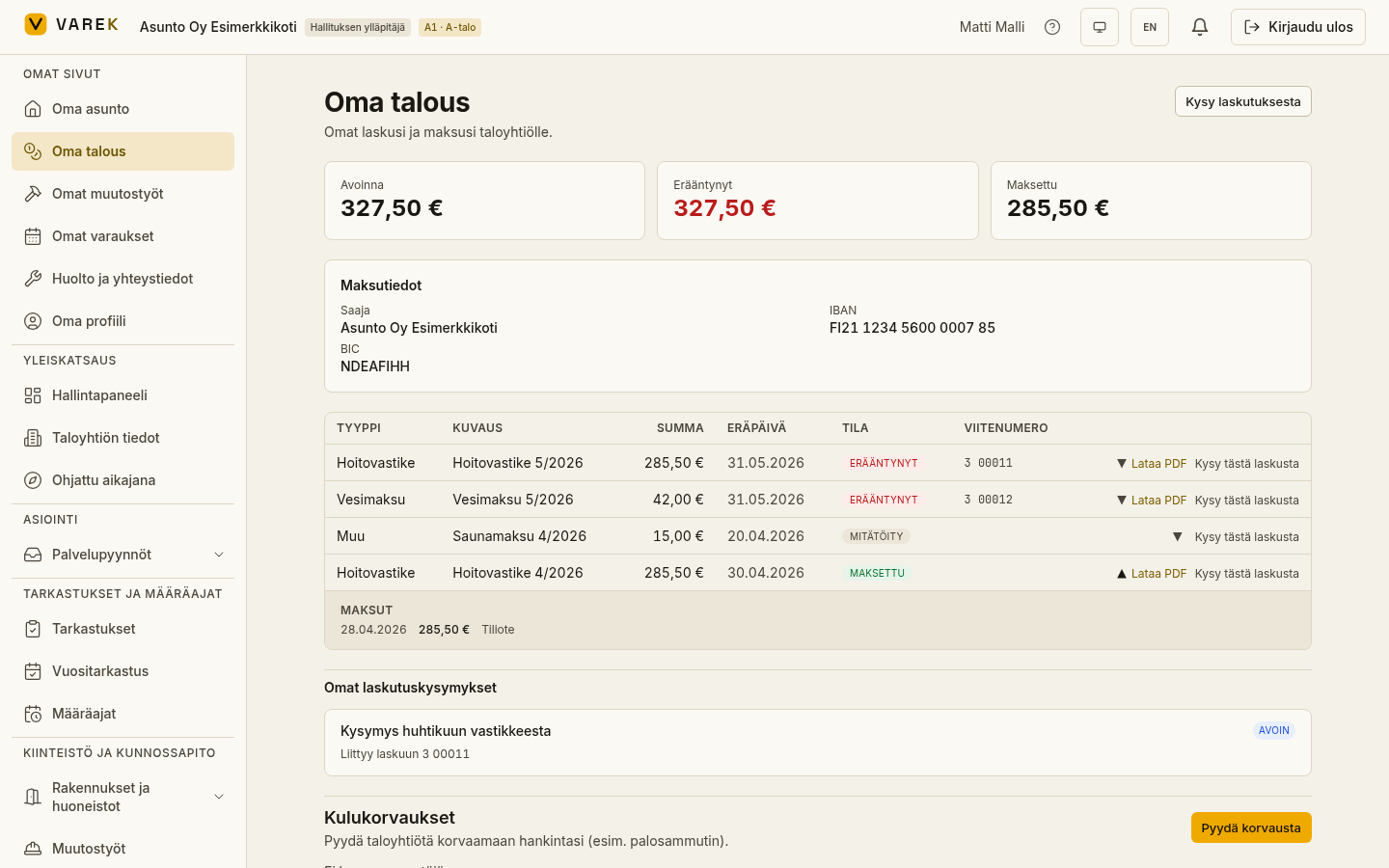
Section titled “Payment details at a glance”Open Oma talous (Your finances) and find an unpaid invoice. To pay, you’ll need:
- Payee and IBAN — shown in the Maksutiedot (Payment details) box, which appears when you have open invoices. A BIC is also shown where applicable.
- Reference number — shown on the invoice row for open invoices.
- Amount and due date — shown on the invoice row.
Option 1: Pay in your online bank with the reference number
Section titled “Option 1: Pay in your online bank with the reference number”- Open your online bank and create a new payment.
- Enter the payee’s IBAN and, where needed, the BIC from the Payment details box on the Your finances page.
- Enter the amount and due date from the invoice row.
- Enter the invoice’s reference number in the reference field.
- Confirm the payment.
Result: The invoice shows as paid on the Your finances page once the company has imported the bank statement and your payment matches by reference number.
Option 2: Download the PDF invoice and pay with the bank barcode
Section titled “Option 2: Download the PDF invoice and pay with the bank barcode”You can download a printable PDF of the invoice that includes a giro slip (“tilisiirtolomake”) and a bank barcode (“pankkiviivakoodi”) — the barcode encodes the payee, amount, reference number and due date.
- Find the invoice in the table on the Your finances page.
- Click Lataa PDF (Download PDF) at the end of the row. The PDF is saved to your device.
- Pay the invoice in one of these ways:
- Scan the bank barcode with your bank’s mobile app — the payee, amount, reference and due date fill in automatically.
- Enter the details by hand from the giro slip on the PDF into your online bank.
Result: The invoice is marked as paid automatically once your payment appears on the company’s bank statement.
A credit note is not paid
Section titled “A credit note is not paid”If an invoice’s status is Hyvitys (Credit, a negative amount), it is a credit the company pays to you — you do not pay it in your online bank. A credit note’s PDF has no bank barcode; instead it states which account the credit is paid to. Make sure your profile’s account number is filled in under Oma profiili (Your profile).
Payment not showing on the invoice?
Section titled “Payment not showing on the invoice?”Payments update on invoices once the company imports the bank statement. A short delay is normal. If a payment doesn’t appear within a reasonable time, or you suspect a matching error, you can ask about billing directly with the accountant.