Resident invoices
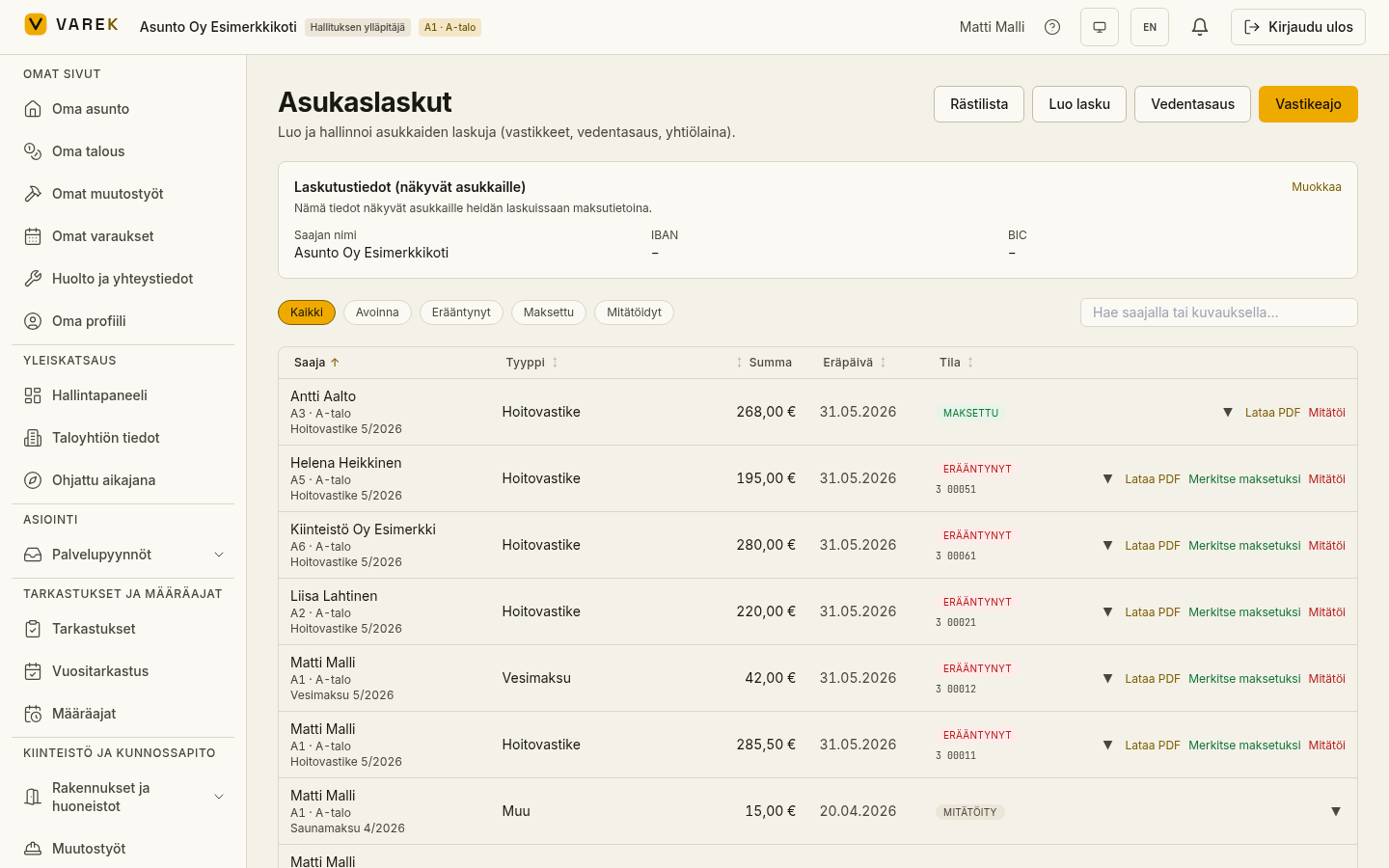
On the Resident invoices page you see every invoice created for residents, its status and its payments. From here you can create a single invoice, mark an invoice paid, download a PDF invoice, and handle credits and overpayments.
Invoice statuses
Section titled “Invoice statuses”The status is shown in the list with a colour code:
- Avoin (Open) — the invoice is awaiting payment. If part has been paid, the remaining amount is shown on the row (partially paid).
- Erääntynyt (Overdue) — the due date has passed and the invoice has not been marked paid.
- Maksettu (Paid) — the invoice is fully paid.
- Hyvitys (Credit) — a credit note (e.g. a negative water balance); the housing company owes the resident.
- Mitätöity (Void) — the invoice has been cancelled.
Filter the list with the buttons at the top (All, Open, Overdue, Paid, Credits, Void) or search by recipient name or description. The Credits KPI card also works as a quick filter — tap it to see only credit notes.
Views: Invoices / By apartment / By shareholder
Section titled “Views: Invoices / By apartment / By shareholder”Three view-toggle buttons in the top-right corner of the list let you switch how invoices are grouped:
- Laskut (Invoices) — a flat list, one row per invoice (default view).
- Huoneistoittain (By apartment) — invoices grouped by apartment. Each apartment shows the total of its open invoices, making it easy to spot units with outstanding balances.
- Osakkaittain (By shareholder) — invoices grouped by shareholder. All of a shareholder’s apartments and their invoices are collected into one block with a combined total — useful when one shareholder owns multiple units.
Create a single invoice
Section titled “Create a single invoice”- Press Luo lasku (Create invoice). The modal is titled Luo asukaslasku.
- Choose the recipient and type, and enter a description, amount and due date.
- Optionally attach a PDF file.
- Save.
Mark an invoice paid
Section titled “Mark an invoice paid”When a payment doesn’t arrive automatically through a bank statement, you can mark it paid manually.
- Find the invoice in the list.
- Press Merkitse maksetuksi (Mark paid) on the row.
Open the row’s ▼ arrow to see the payment history. A single payment can be removed with the row’s × button.
Download a PDF invoice
Section titled “Download a PDF invoice”Press Lataa PDF (Download PDF) on the row. The invoice includes the payee and payer details, the reference number and a bank barcode. On a combined invoice the items appear as lines. A credit note has no payment section.
Void an invoice
Section titled “Void an invoice”Press Mitätöi (Void) on the row and confirm. If payments have already been matched to the invoice, VAREK creates a refund obligation as part of voiding, which appears on the Palautukset (Refunds) tab of the Finances section.
Overpayments and refunds
Section titled “Overpayments and refunds”If more than the invoice amount has been paid, the row gets an Ylimaksu (Overpaid) badge and two actions:
- Palauta tilille (Refund to account) — creates a refund to the resident’s declared IBAN account.
- Siirrä seuraavaan laskuun (Carry to next invoice) — moves the surplus to the same payer’s next open invoice.
Refunds are handled on the Palautukset (Refunds) tab of the Finances section, where a refund can be marked paid or cancelled.
Result
Section titled “Result”The metrics at the top of the list keep track of open and overdue amounts, as well as any credits and refundable amounts. Paid invoices are recorded into the budget actuals automatically.
View an invoice in the app
Section titled “View an invoice in the app”You can open an invoice right inside VAREK in a viewer window before downloading: zoom, page through, search text, see thumbnails and print. Click an invoice in the list to open it. The same viewer works for documents and other PDF files in the service too.