Import data (apartments and owner contact details)
The data import tool is for board administrators who want to transfer their apartment register and owner contact details from a previous system or Excel spreadsheet into VAREK all at once — without manual entry.
What the tool does
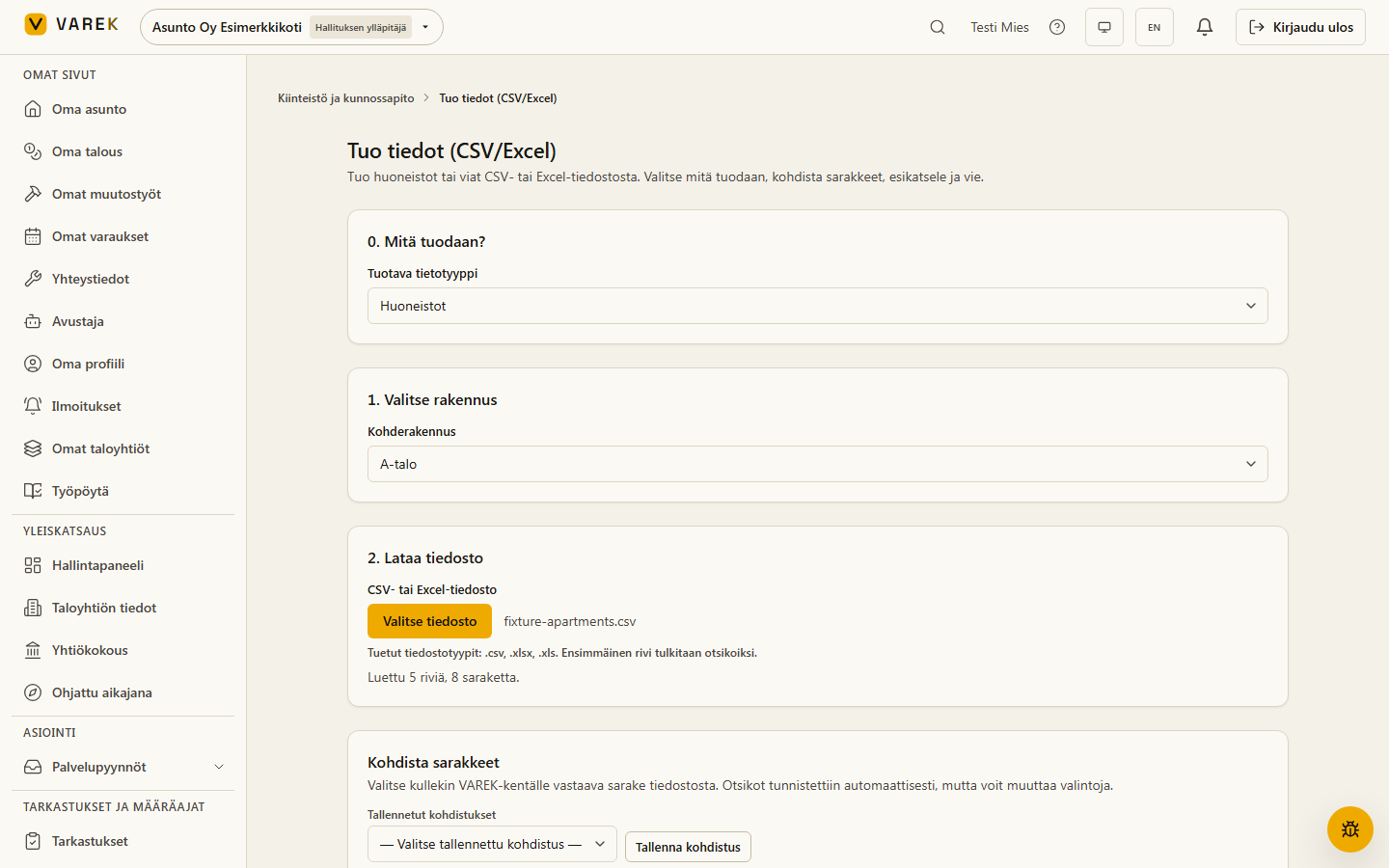
Section titled “What the tool does”The importer reads a CSV or Excel file, auto-detects column headings, and lets you map them to VAREK fields. You can preview the result row by row before anything is written to the database. Only rows that pass validation are saved in the final import.
Import outcome labels:
- Lisätty (Added) — a new apartment was created in the database.
- Päivitetty (Updated) — an existing apartment (same unit code) received updated information.
- Ohitettu (Skipped) — a row was identical to the existing record and required no changes.
Step 1 — Export from your previous system or Excel
Section titled “Step 1 — Export from your previous system or Excel”Open your old apartment database or Excel spreadsheet and save it as a CSV or
Excel file (.csv, .xlsx, or .xls). Recommended format:
- The first row must be a header row — column names are flexible; VAREK auto-recognises common variants (e.g. “Huoneisto”, “Unit”, “Apt no”, “Pinta-ala m²”, etc.).
- For CSV files, VAREK handles both comma (
,) and semicolon delimiter (;) — Finnish systems typically export with a semicolon. - Maximum 5,000 rows per import.
Column names VAREK recognises immediately:
| VAREK field | Example names in your file |
|---|---|
| Unit code (required) | Huoneisto, Apt, Unit, Tunnus |
| Floor | Kerros, Floor, Krs |
| Room type | Huonetyyppi, Tyyppi, Rooms, H-luku |
| Area (m²) | Pinta-ala, Area, m², Neliöt |
| Share count | Osakkeet, Shares |
| Resident count | Asukkaat, Residents |
| Owner name | Omistaja, Owner, Nimi |
| Owner email | Sähköposti, Email, Omistaja sähköposti |
| Owner phone | Puhelin, Phone, Omistajan puhelin |
Step 2 — Select the target building
Section titled “Step 2 — Select the target building”Open Tuo tiedot and first choose the building into which the apartments will be imported. Buildings are not created during import — add any required buildings first under Buildings and apartments.
Step 3 — Upload the file
Section titled “Step 3 — Upload the file”Click Valitse tiedosto (Choose file) or drop the file onto the input. VAREK reads the file locally in the browser — it is not sent to the server until you click Tuo (Import).
Once the file is read you will see a summary: “Luettu N riviä, K saraketta” (N rows, K columns read).
Step 4 — Map columns
Section titled “Step 4 — Map columns”VAREK proposes an automatic mapping based on the header row. Review each row:
- A field matched automatically will be pre-filled.
- A field marked as required but without a source column is highlighted in red — select the correct column from the dropdown.
- Optional fields left unmapped are simply not imported.
Save a mapping for later
Section titled “Save a mapping for later”If you regularly import files from the same system, you can save the current mapping under Tallennetut kohdistukset → Tallenna kohdistus (Saved mappings → Save mapping). Next time, load it from the same dropdown and the columns will be mapped instantly.
Step 5 — Preview rows
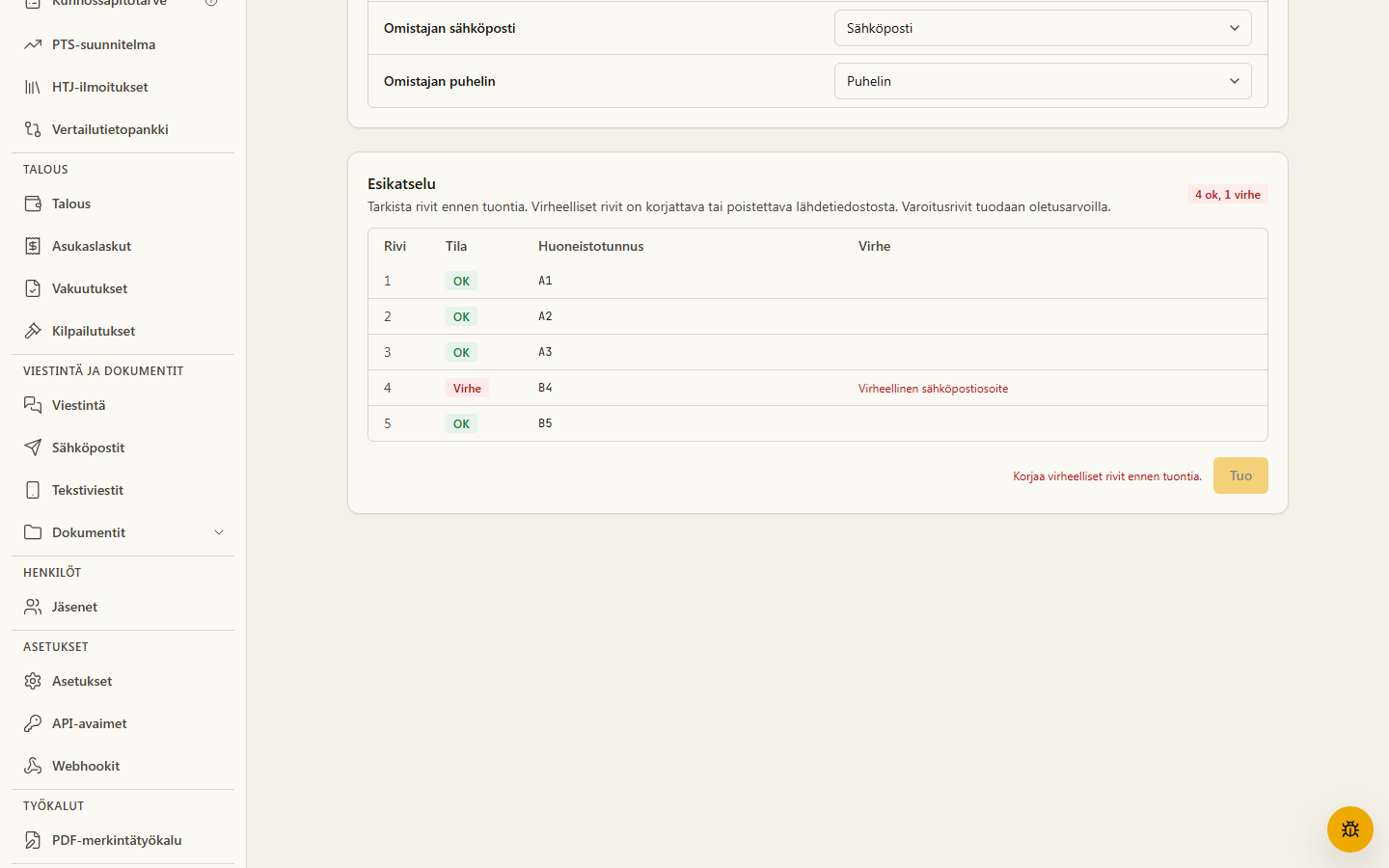
Section titled “Step 5 — Preview rows”The preview table shows the status of every row:
- OK — the row is ready to import.
- Virhe (Error) — the row contains a problem (e.g. a missing required field or an invalid email address). The error description is shown inline.
The Import button is disabled while any row is in the error state. Fix the issues in your source file and re-upload.
Step 6 — Import
Section titled “Step 6 — Import”Click the Tuo (Import) button. The server re-validates every row independently (the browser-side preview is advisory only) and saves only the valid rows.
When the import finishes you will see a summary:
- Lisätty X huoneistoa — X apartments added.
- Päivitetty X huoneistoa — X apartments with the same unit code were updated (idempotent upsert: if all field values are identical, the row is skipped instead).
- Ohitettu X riviä — X rows were identical to existing records, no changes made.
After importing you can open the apartment list immediately via Avaa huoneistot → (Open apartments) or import more files.
Importing an HTJ share register (apartments)
Section titled “Importing an HTJ share register (apartments)”Instead of a CSV/Excel file, you can import apartments directly from a Huoneistotietojärjestelmä (HTJ) share register in JSON format. HTJ is the National Land Survey’s (Maanmittauslaitos) national share and apartment register: one file imports the whole housing company’s apartments, share-group IDs and share counts at once — authoritatively, without manual entry.
Where to get the file
Section titled “Where to get the file”Sign in to the National Land Survey’s apartment data maintenance for housing
companies web service (asiointi.maanmittauslaitos.fi/taloyhtiot) with
strong Suomi.fi authentication and download the housing company’s share
register. Import the file as-is: choose 0. What to import? → Apartments,
select the target building and upload the .json file.
What the HTJ import reads
Section titled “What the HTJ import reads”| VAREK field | HTJ source |
|---|---|
| Apartment code | staircase + apartment number + division letter (e.g. A 5 a → A5a) |
| Share-group ID (HTJ) | osakeryhmätunnus (16 characters) |
| Share count | osakelukumäärä |
| Room type | huoneistotyyppi (e.g. “3h+k”) |
| Floor | sijaintikerros |
| Area (m²) | apartment area |
| Owner name | the largest ownership share’s owner (name or company name) |
Parking spots, storage units and terminated share groups are skipped automatically (you see the count in the import summary). If an apartment has several owners, only the largest ownership share is imported as the contact; the others appear in the preview summary.
:::caution Personal data handling VAREK never reads or stores personal identity codes or dates of birth from the HTJ file — only the owner’s name is imported as the apartment’s contact, exactly as in the CSV import. If an owner has a disclosure restriction, the name is not imported at all and the import reports it. :::
Share-group IDs are never silently overwritten
Section titled “Share-group IDs are never silently overwritten”If an apartment already has a stored share-group ID (e.g. entered manually under HTJ tools) and the HTJ import brings a different ID for it, the existing value is kept and not overwritten. The import summary lists these conflicts. To let the HTJ value win, clear the stored ID first and re-import.
Live fetch from the National Land Survey interface
Section titled “Live fetch from the National Land Survey interface”A direct interface query from HTJ (without a manual download) requires a National Land Survey interface agreement and authorization, and will be enabled later. For now, the download + import flow described above is available.
Defect report import
Section titled “Defect report import”The data import tool also supports importing defect reports. Select Viat (Defects) from the 0. Mitä tuodaan? (What to import?) dropdown and follow the same steps as for apartments — building, file, column mapping, preview, import.
Building is optional for defects
Section titled “Building is optional for defects”For defects, selecting a building is not required. If you do not choose a building, defects are imported as common-area defects (not linked to any apartment).
If you select a building and map a huoneisto (unit code) column from your file, VAREK will look up the matching apartment in that building and link the defect to it. If the unit code is not found in the building, the defect is still imported — but without an apartment link.
Recognised columns
Section titled “Recognised columns”| VAREK field | Example names in your file | Required? |
|---|---|---|
| Title (otsikko) | Otsikko, Title, Nimi | Yes |
| Description (kuvaus) | Kuvaus, Description, Selitys | Yes |
| Category (kategoria) | Kategoria, Category, Tyyppi | No |
| Severity (vakavuus) | Vakavuus, Severity, Kriittisyys | No |
| Status (tila) | Tila, Status | No |
| Location (sijainti) | Sijainti, Location, Paikka | No |
| Unit code (huoneisto) | Huoneisto, Unit, Apt | No |
| External ID (tunnus) | Tunnus, ID, ExternalId | No |
Automatic value mapping
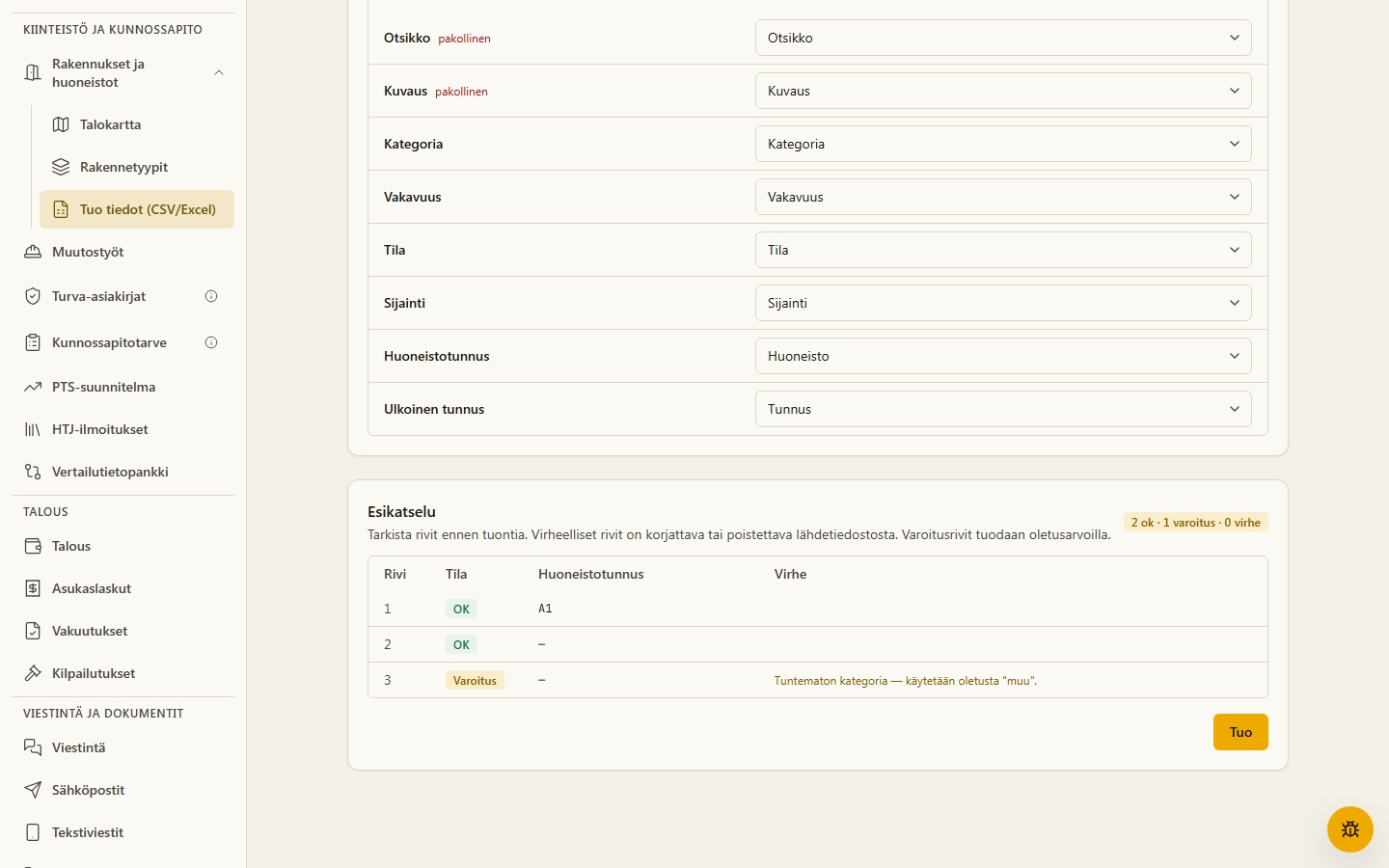
Section titled “Automatic value mapping”Category, severity, and status are auto-mapped to VAREK’s built-in values (e.g. “julkisivu” → category julkisivu, “kriittinen” → severity kriittinen). VAREK’s own value names — in both Finnish and English (e.g. “Keskitaso”, “Wet rooms”, “Reported”) — are always recognised as-is without a warning. If a value in your file does not match any of VAREK’s known values, the row receives a Warning status in the preview but is still imported using the following defaults:
- Unrecognised category → muu (other)
- Unrecognised severity → keskitaso (medium)
- Unrecognised status → ilmoitettu (reported)
Warning rows are shown with a yellow Varoitus (Warning) badge in the preview. The Import button remains available even when rows are in warning state — they are imported with default values. Only Error rows block the import.
Re-import without creating duplicates (external ID)
Section titled “Re-import without creating duplicates (external ID)”If you map an external ID column (field name Tunnus, ID, or similar)
from your source file, VAREK uses it as a unique key:
- If the same ID already exists in the database, the row updates the existing defect instead of creating a new one.
- If the ID does not yet exist, the defect is created normally.
- If the same ID appears twice in the same file, the later row wins: the first creates the defect and the later one updates it. The preview warns about this before importing.
This allows you to incrementally migrate defect data from a legacy system: you can re-import the same file (e.g. with updated statuses) without creating duplicates.