Interface overview
This page introduces the structure of the VAREK interface so you can find what you need quickly. The menu adapts to your role, so not every section mentioned here will necessarily be visible to you.
Top bar
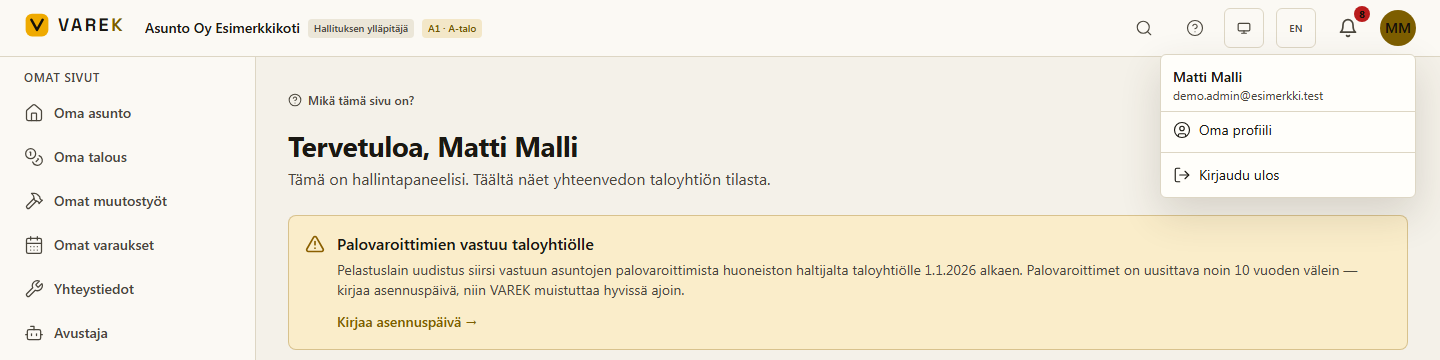
Section titled “Top bar”At the top of the screen there is a bar containing:
- the VAREK logo on the left — takes you to the home page.
- the housing-company switcher next to the logo — it shows the active housing company’s name, your role and your apartment identifier (if any). If you belong to more than one housing company, you can switch the active one here.
- on the right: search (⌘K), a help link (?), the theme and language selectors, the notification bell and a round profile button showing your initials.
- the profile menu opens from the profile button. It shows your name and email address, an “Oma profiili” (My profile) link and “Kirjaudu ulos” (Sign out). The separate sign-out button and the plain name text are gone — both now live in this menu.
Association at a glance
Section titled “Association at a glance”When you open the home page (Overview), board and admin members see an “Taloyhtiön tilannekuva” (Association at a glance) card at the top. It gathers the housing company’s key figures in one place: the number of apartments, open defect reports, active claims, the next claim-renewal deadline with a days-remaining countdown (red when 30 days or fewer remain, amber when 90 or fewer) and the estimated repair costs at risk in euros (visible to the board only). Each tile links straight to the relevant view (apartments, defects, claims, deadlines). The card only appears once the housing company has data — it stays hidden for an empty company and needs no action from you.
The card’s top-right corner has a “Lataa tilannekatsaus (PDF)” (Download situation report) button. It builds a one-page Finnish-language PDF: the same figures as the card, plus tables of upcoming deadlines (soonest first, red/amber when little time remains) and open defect reports. It’s meant to be attached to a board or general-meeting agenda. The repair-cost line only appears in the report when it also appears on the card (board members only). The PDF is always in Finnish, regardless of your interface language.
Customizable dashboard
Section titled “Customizable dashboard”The card area below the at-a-glance card is customizable: press Muokkaa työpöytää (Edit dashboard) on the right side of the front page and each section gains its own tools. You can
- move a section earlier or later with the arrow buttons,
- adjust its width (1×, 2× or 3× — full row) from the number button,
- remove a section with the ✕ button, and
- add new sections from the “Lisää osio” (Add a section) tray at the bottom — for example today’s bookings, the bank balance, open resident invoices or the AI-credit balance (some sections are visible to the board and admins only).
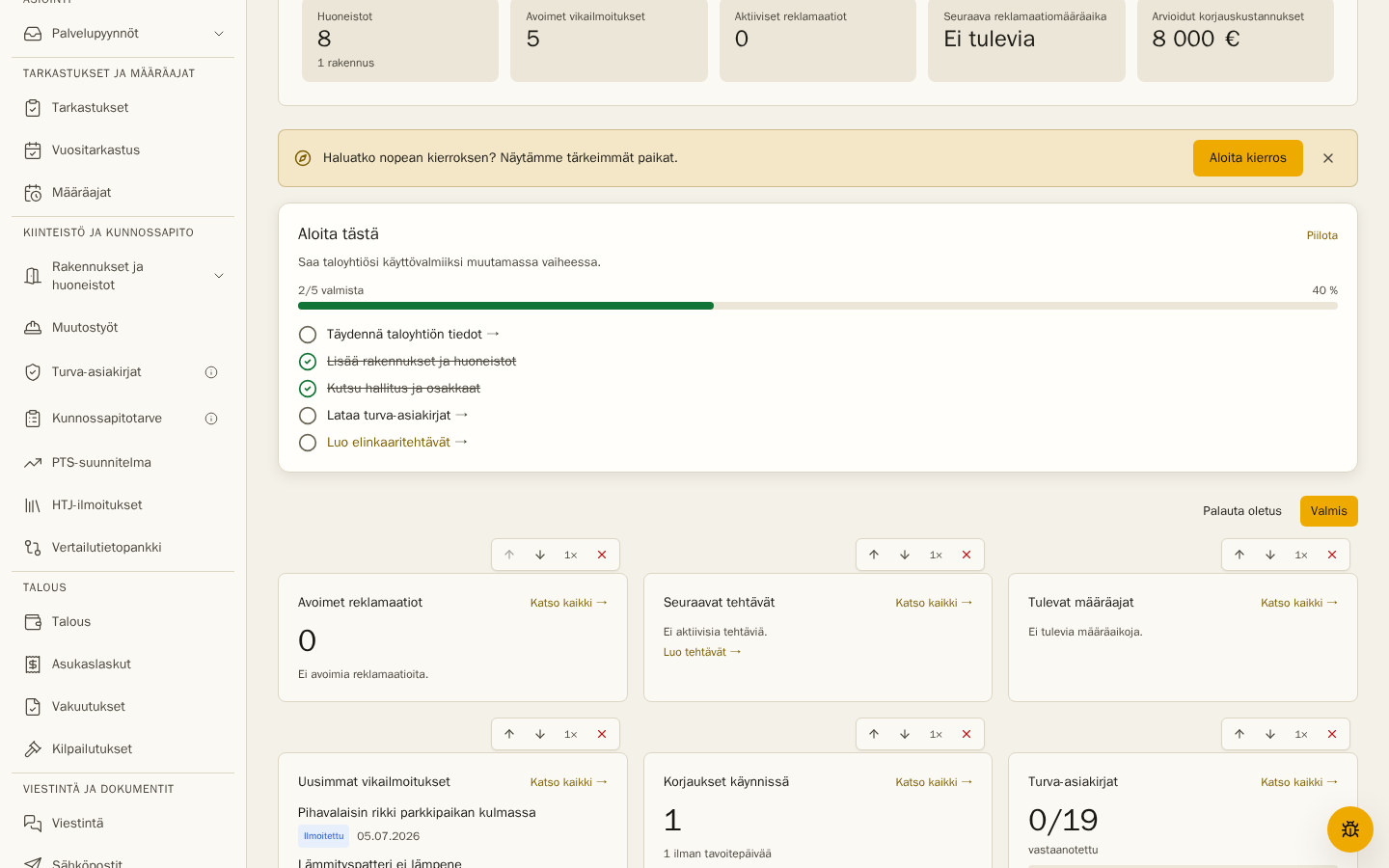
Palauta oletus (Reset to default) restores the original order. The arrangement is saved per user and association, so it follows you between devices and never affects other users’ views.
Left-hand menu
Section titled “Left-hand menu”The main menu is on the left and is divided into groups. On a mobile device the menu opens from the menu button in the top bar.
Omat sivut (My pages)
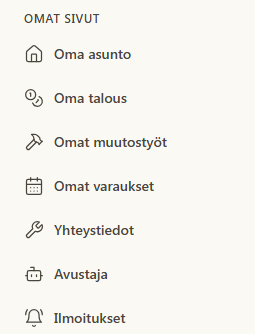
Section titled “Omat sivut (My pages)”At the very top of the menu is the “Omat sivut” (My pages) group, which gathers your personal pages together:
- “Oma asunto” (My apartment) — your own apartment’s details.
- “Oma talous” (My finances) — your own invoices and payments.
- “Omat muutostyöt” (My alterations) — alteration works concerning your own apartment.
- “Omat varaukset” (My bookings) — your own space and sauna bookings.
- “Yhteystiedot” (Contacts) — the housing company’s maintenance and contact details.
- “Omat taloyhtiöt” (My housing companies) — a list of your housing companies and quick switching between them.
- “Ilmoitukset” (Notifications) — your notifications in one view.
- “Avustaja” (Assistant) — your personal AI assistant, see Assistant guide.
“Oma profiili” (My profile) has moved behind the profile button in the top bar (profile icon → Oma profiili). You switch between housing companies from the company switcher in the top bar (see above).
Other groups
Section titled “Other groups”Below My pages, the menu continues with the housing company’s functions. Depending on your role and the features your housing company uses, you may see, for example:
- “Yleiskatsaus” (Overview) — the home page, housing-company details, the guided timeline and general meetings (yhtiökokous).
- “Asiointi” (Services) — “Palvelupyynnöt” (Service requests) gathers defect reports, claims, maintenance requests and bookings underneath it. The group opens and closes with the arrow.
- “Tarkastukset ja määräajat” (Inspections and deadlines) — inspections, the yearly inspection and deadlines.
- “Kiinteistö ja kunnossapito” (Property and maintenance) — apartments, structure types, security, the maintenance plan, PTS financing plan, HTJ statutory notifications and the alteration-works board review queue. For admins, the building map (Talokartta) is a tab of the Buildings and apartments page; other members see the building map as its own menu item.
- “Talous” (Finance) — finance, resident invoices, insurance bidding (Vakuutukset) and service/contractor procurement (Kilpailutukset).
- “Viestintä ja dokumentit” (Communication and documents) — communication, emails, text messages (Tekstiviestit), documents and the document editor (Asiakirjaeditori).
- “Henkilöt” (People) — managing members and invitations.
- “Asetukset” (Settings) — housing-company and personal account settings.
Per-page guide boxes
Section titled “Per-page guide boxes”When you open a feature for the first time, a guide box appears at the top of the page: a short explanation of what the page does, what it is used for and a concrete example of a use case. Many boxes also have a Read more in the help center link that takes you straight to that feature’s guide here in the help center.
You can hide the box with the ✕ button — the choice is remembered per page in this browser. A small What is this page? button stays in its place, so you can bring the explanation back at any time.
The same explanations are also available through search (⌘K): when you search for a feature by name — for example “claim” — the results end with a What is this? group showing the page’s short description. Selecting it takes you to the page and opens the guide box, even if you had hidden it earlier.
Form drafts
Section titled “Form drafts”If an input window (for example New procurement round or a maintenance request created from a defect) closes by accident — say, by clicking outside the window — what you typed is not lost. When you reopen the same window, the fields come back and the top of the window shows “Restored an unsaved draft”. If you closed the window on purpose, discard the restored content with the Discard draft link.
The same applies to three full-page forms: the new defect report, the board email compose view (the draft also survives visiting the History or Inbox tab in between) and the channel message box. Each conversation channel keeps its own draft — a half-written message does not follow you into another channel; it waits on its own channel instead.
The draft only lives until you save the form or reload the page — nothing is stored permanently.
Role-specific menu
Section titled “Role-specific menu”The menu shows only the sections that belong to you:
- The board sees all groups.
- A shareholder sees the My pages group, shared information, and functions for filing defect reports and making bookings. Administrative sections such as People are not shown.
- A bookkeeper sees the Finance section and resident invoices.
- A consultant only sees the sections they have been granted access to.